Skip to content

Apple Universe

Top-level category for all Apple, Mac, and OS X related topics.

A quick-toggle solution for macOS’ translucency feature

Note: This was originally published in 2015; I've updated it with a minor change required for Mojave, and clarified a bit of the text. Further note: There's now an updated script that works in Sonoma.

macOS includes—and enables by default—translucency, which gives you 'wonderful' effects such as this in Calculator:
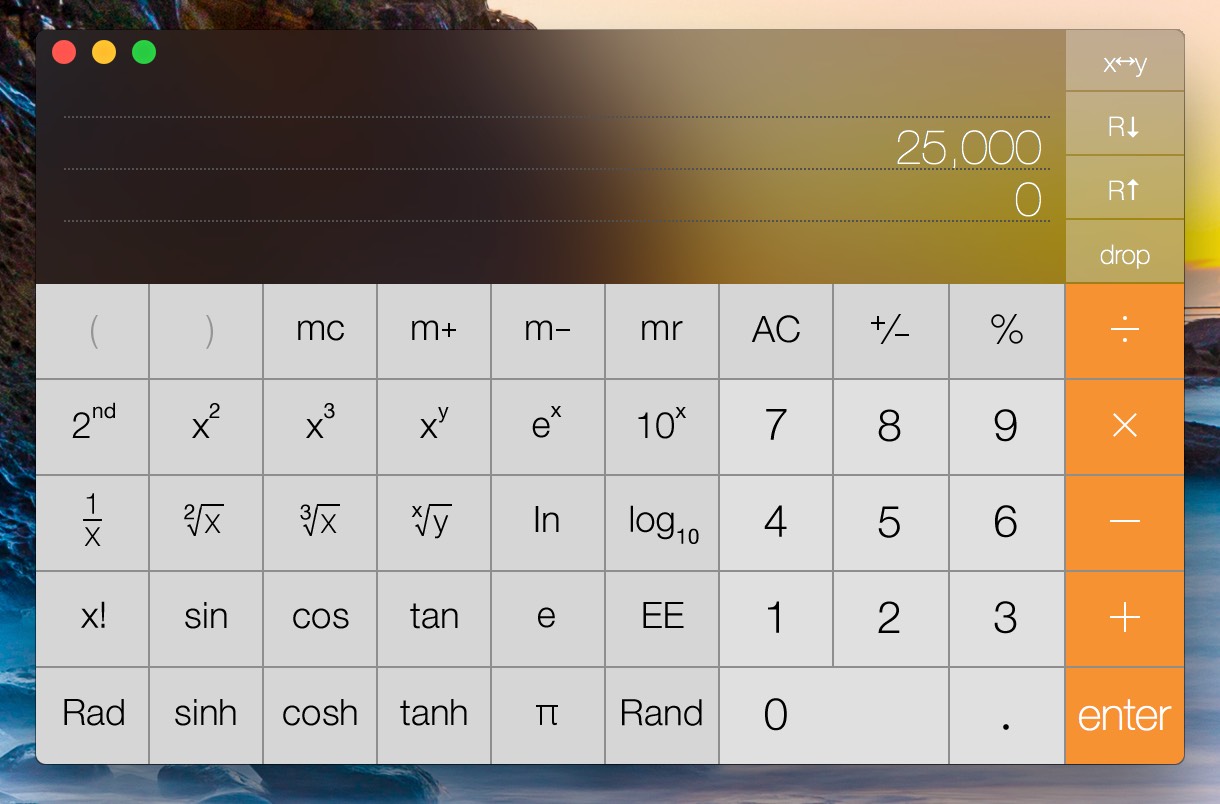
This is just one example; lots of other apps (Mail and Messages, to name two) contain panes that become grossly distorted by background color bleed-through. I'm not sure who at Apple (Marketing?) thinks this feature is good for productivity , but I find it completely distracting.

As a result, I turn off translucency on every Mac I own. You can do so yourself in System Preferences > Universal Access > Display. Just check the Reduce transparency* box, and you won't get any more bleed-through. (You'll also get a solid Dock, and perhaps the world's ugliest Command-Tab task switcher. Such is the cost of usability.)

* It's ridiculous that Apple calls this transparency, which is defined as "the condition of being transparent," and being transparent means being see-through, clear, invisible, etc. This is clearly translucency, or "allowing light, but not detailed images, to pass through." But I digress…

However, when writing for Many Tricks or Macworld, I often need to take screenshots. And because most users won't disable translucency, I prefer to take those screenshots with translucency enabled, so that they're closer to what most users might see. That means a trip through System Preferences to toggle the checkbox, which gets annoying after the second or third time you've done it.

There had to be an easier way—and after some missteps, I eventually found it.

[continue reading…]


My iPhone 8 Plus might be my last iPhone

I know, clickbait headline, but really, it's how I've felt since the release of the iPhone X, and still feel today. And no, this isn't about switching to Android. It's about not buying a newly-designed iPhone. Why not? Two reasons…

The Notch

The notch adds nothing to the iOS experience, but takes away much. Those stupid ears grab my eyes every time I see them, and there's no way to avoid them, save never using anything but an all-black screen. When not in an app, they show status items on a black background, which is fine…as long as your iPhone's wallpaper is also black.

But once you're in an app, you're in Notchville…

[continue reading…]


Someone intercepted my login info in DirecTV’s iPhone app

This morning, I launched the DirecTV app on my iPhone (connected to my home network via wifi).
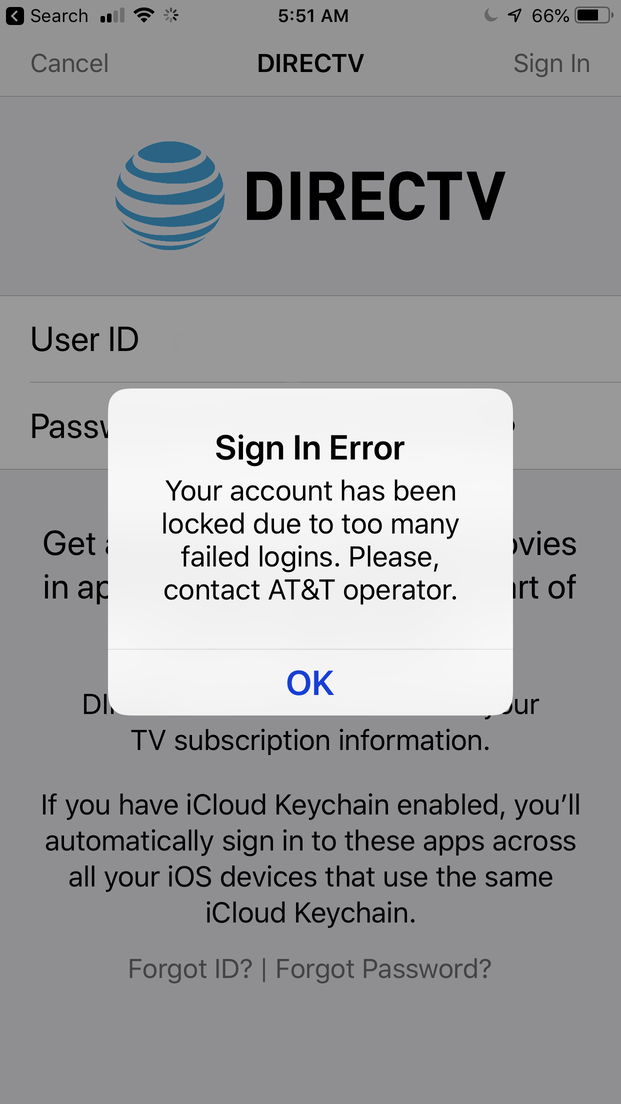
On launch, I saw a login screen that looked slightly different than usual; the app had been updated recently, so I assumed it was the new login screen. But when I entered my user name and password (on the first attempt), I saw the screen to the right…

At this point, alarm bells went off. Not just because it was my first attempted login, but also due to the grammar of that last sentence:

"Please, contact AT&T operator."

That's wrong in many ways—and there's no provided method for contacting an AT&T operator. I now believed I had been scammed: Somehow, a fake login page was injected where the app would normally display its login screen. As soon as I pressed Enter after entering my password, I'm sure my username and password were sent off to some server somewhere.

I immediately opened the DirecTV web site on my Mac, logged in (using my supposedly-locked account and current password), and changed my password. That all worked, and I received the email stating I'd changed my password, so I'm pretty sure my account is fine. (And I use unique passwords for each service, so the one that was probably compromised is useless to the hackers.)

But the bigger question here is what happened and how did it happen?

[continue reading…]


Easily see any app’s bundle identifier

I occasionally need to help one of our customers get the bundle identifier for a given app, for some purpose with one of our apps. While the task isn't complicated—the value is stored in a file named Info.plist within each app bundle—it's not something that's necessarily easy to explain to someone who doesn't have a lot of Mac experience.

I figured there must be a less-complicated solution, and I was right, though it's probably higher on the geek factor. After some searching, I found this thread at Super User, which offers a number of solutions. The simplest—and always working, in my experience—was the very first one: Open Terminal and run this command:

osascript -e 'id of app "Name of App"'

The "Name of App" is replaced with the name of the app as it appears when hovering over its Dock icon. For Excel, for example, it'd be:

osascript -e 'id of app "Microsoft Excel"'

Run that command, and it returns com.microsoft.Excel, which is just what I need—I just have the customer copy the output and email it back to me.


Review: Olala 10,000mAh Power Bank

For those not aware, I have something of an addiction to portable power packs—with two kids and who knows how many devices, it seems someone somewhere is always out of power.

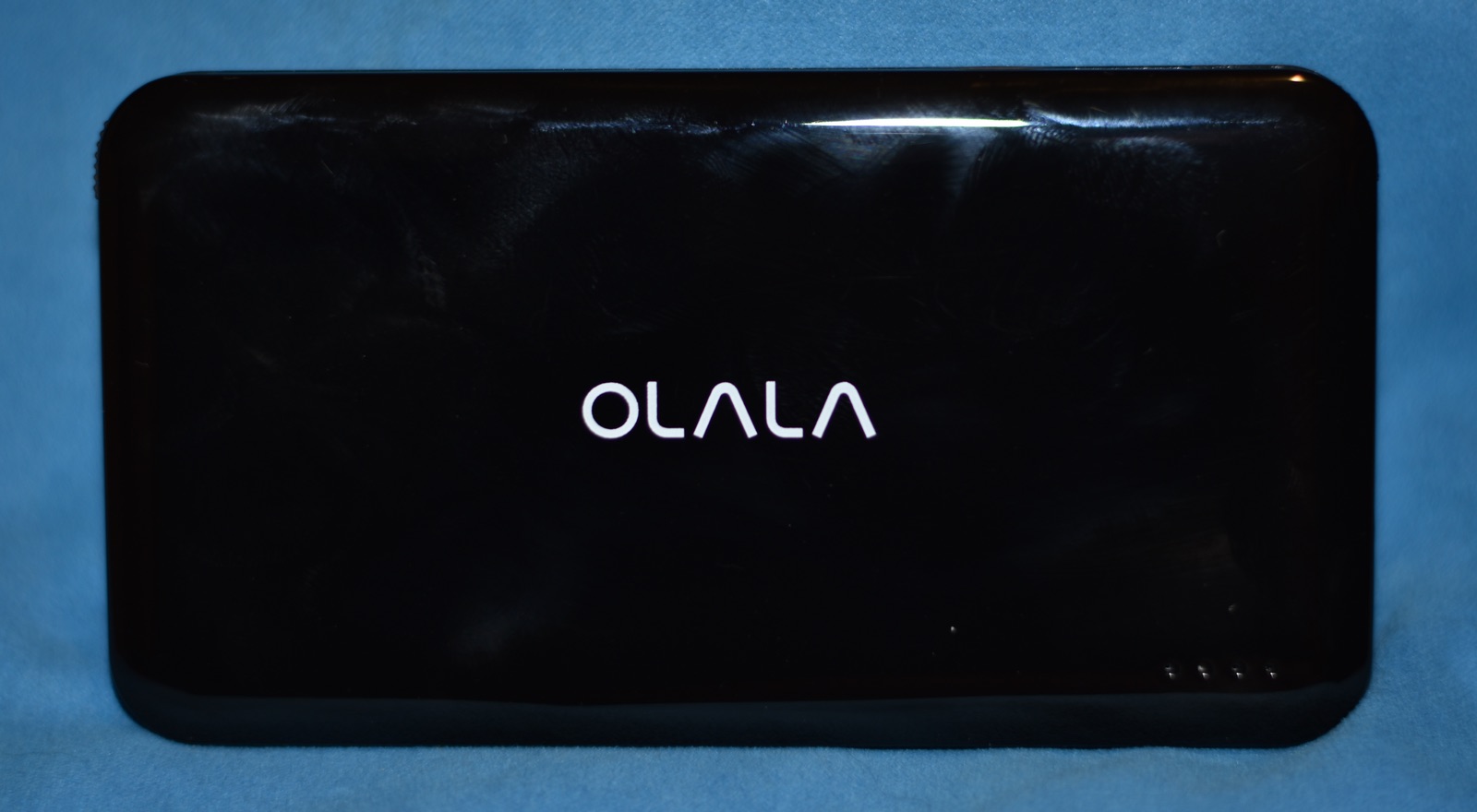
For the last few weeks, I've been testing an addition to our stable of such products: Olala's $32 10,000mAh Power Bank.1I received the Power Bank at a greatly reduced cost, but my review is based solely on its performance and my impressions of its build quality.

This shiny piano black unit looks great (though that shiny finish is a fingerprint magnet), and its smooth surface means it easily slides into a pocket in a backpack. Four blue LEDs let you know how much juice you have left. Unlike some battery packs, this one is Apple MFi Certified, meaning Olala has gone through the necessary steps to certify that their device meets Apple's standards. (You can search for MFi certified devices in case you're ever curious about a given accessory developer.)

[continue reading…]


Fujitsu ScanSnap software and the 64-bit-only future

A fair number of my apps are still 32-bit—see how many you still have—though many I don't really care about all that much. But there's one suite of apps that I use every day, usually multiple times a day: Fujitsu's ScanSnap apps. This is the software bundled with the ScanSnap ix500 scanner.

While Fujitsu has been good about updating their software in the past, I was a bit concerned about the upcoming 64-bit transition. So I both tweeted at them and sent them an email. I haven't seen a reply on Twitter, but a (clearly form letter) reply to my email is at least somewhat encouraging:

There is no problem in the behavior of the application or the OS concerned. The message is only inform that the application needs to be modified for compatibility with next-generation macOS (which should be available near the end of the year). PFU is going to resolve this, but the resolution date is not set yet. In the meantime, please continue using the latest version of the software available.

This blurb was obviously prepared as a response to those complaining about the new 32-bit warning dialog in macOS 10.13.4, but it does seem to address the longer-term question: Fujitsu is planning to "resolve this," which hopefully implies 64-bit versions are in our future, though at some not-yet-disclosed date.

There are very few things in my workflow that I couldn't replace…but replacing my ScanSnap and everything it does for me would be quite difficult. Hopefully we'll see a 64-bit ScanSnap suite before this fall's deadline.


A look at seven years of my Mac App Store activity

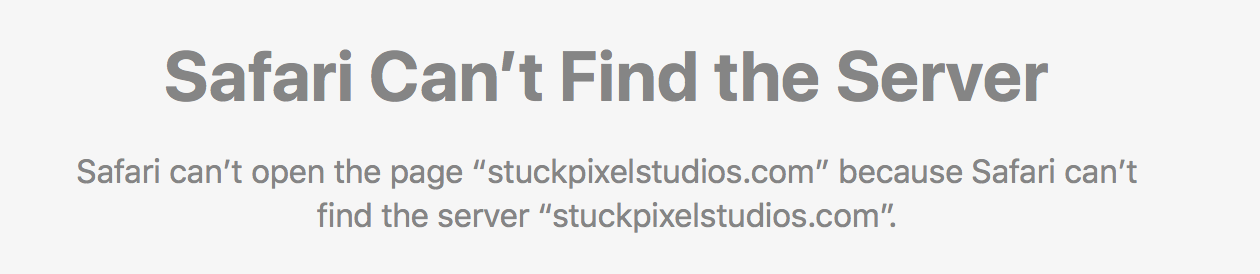
The other day while browsing the Mac App Store, I clicked on an app's web site link, only to be greeted with this lovely "Can't Find the Server" error message in Safari…

That got me wondering about just how often that happens—how many apps are out there that are still in the store, yet their developers have closed down their work and moved on to other projects? I thought it might be interesting to look at my App Store purchases and see just how many of them had broken web site links in their App Store entries.

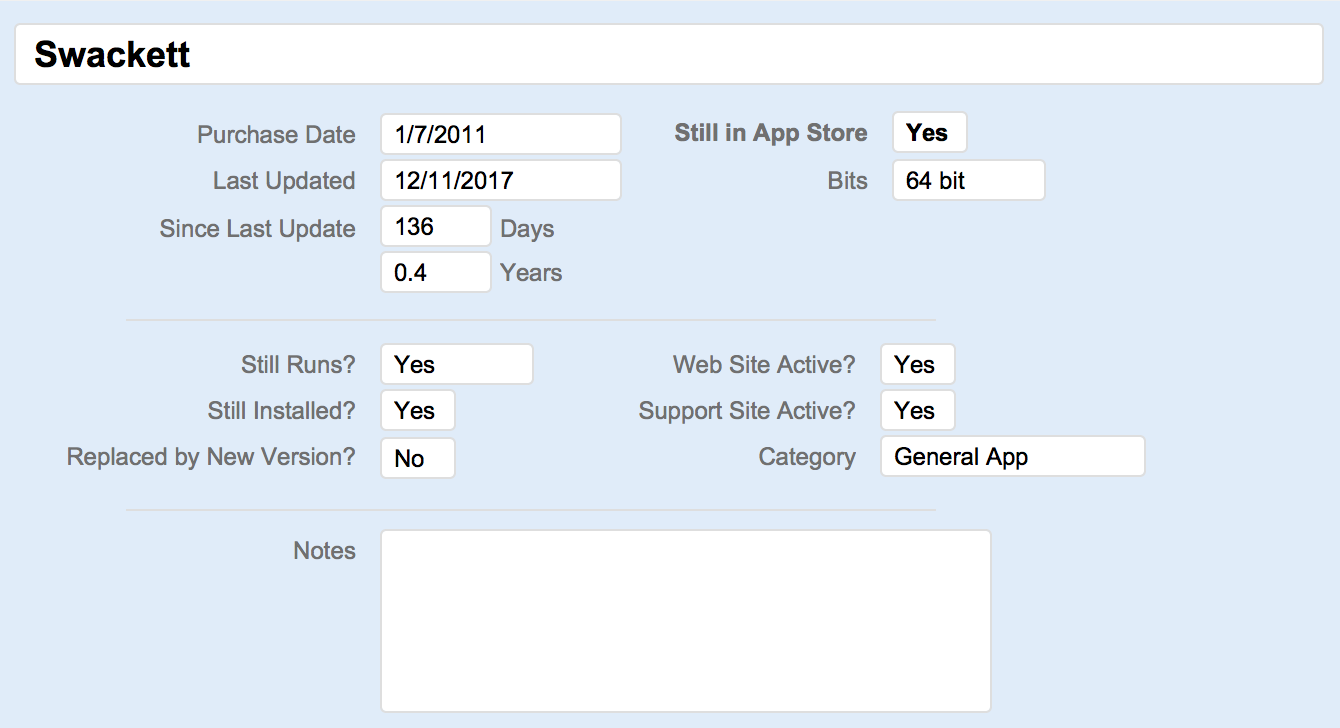
Then I thought that as long as I was looking at each of my purchases, I might as well collect some additional data. So I put together a simple FileMaker Pro database with a few fields for each app…

During my spare time over a few days and nights, I went through every entry in my App Store Purchased list (after unhiding some apps that I'd hidden). I installed them (if they weren't already installed), tried to run them, and completed the above data card for each app.

I then tried to answer some questions about my App Store purchases over the years…

  • How many apps have I purchased? [116]
  • How many do I still use? [35]
  • What types of apps do I purchase? [A variety; lots of games]
  • How many appear to have no-longer-there developers? [5]
  • How many of the apps are still in the App Store? [90]
  • How recently have those apps been updated? [Check the chart]

If you want more detail than the [bracketed tl;dr notes] provide, keep reading…

[continue reading…]


The future of some older games on the Mac App Store

As part of this longer post on my purchases from the Mac App Store over the last seven years, one particular bit really struck me: Based on my purchases, at least, there are a a lot of rarely-updated apps—and games in particular—in the Mac App Store.

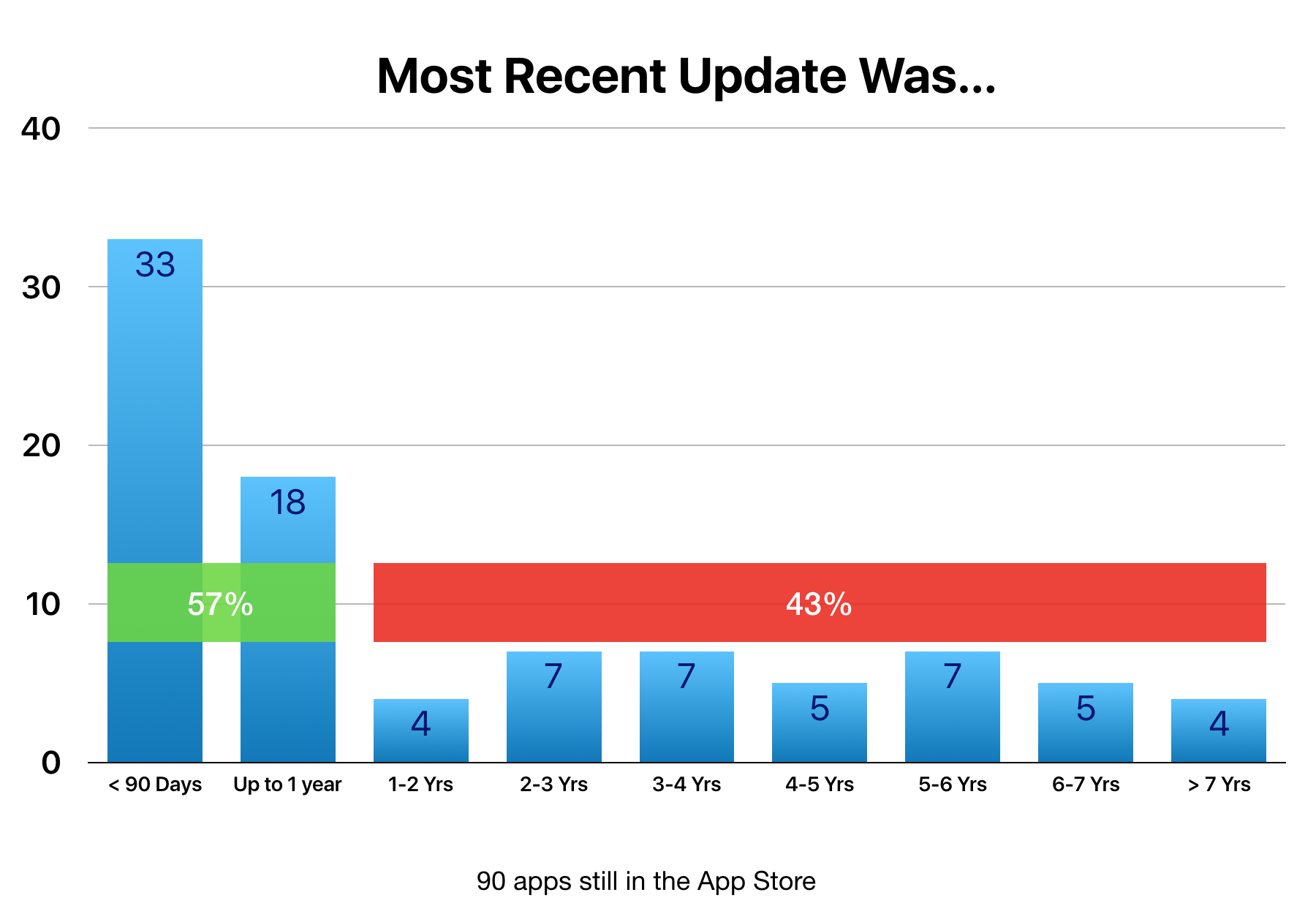
Of the 116 purchases (or free downloads) I've made since the App Store opened, 90 are still available in the App Store today. At first glance, that seems pretty good—78% of what I have is still in the App Store. But it doesn't look quite so good if I examine when each of those 90 apps was last updated:

Yes, 51 of those 90 apps (57%) have been updated within the last year, and that's good. But what's not good is that the remaining 39 apps (43%) haven't been updated in at least a year—and of those 39 apps, 21 of them (over half!) haven't been updated in four or more years.

Digging into those 21 apps reveals that four of them are utilities, five are general use apps, and 12 of them are games.

[continue reading…]


6,399 reasons why I haven’t yet replaced my iMac

My main machine is a late 2014 27" iMac with a 4GHz Core i7 CPU, 24GB of RAM, and a 256GB SSD (plus a big external RAID for most of my files). While it runs fine, I would like something with Thunderbolt 3 support, with faster graphics for X-Plane, and with more computing power for ripping Blu-Ray discs. It's also beyond AppleCare age, and if something fails, it will be expensive and time consuming to repair.

When the iMac Pro came out, I was intrigued, but the price point is scary high and there was the "new new" Mac Pro on the horizon—potentially a cheaper alternative, given the display wouldn't have to be bundled (and upgradeability is a good thing). I was hoping for an update on that machine at WWDC this June. Instead, we got the update much earlier, though it's not was I was hoping to hear: The new new Mac Pro won't be released in 2018.

As a result, if I want to replace my iMac this year, I have only two choices: A new iMac non-pro, or a new iMac Pro. (In theory, I could look at a MacBook Pro with an eGPU for graphics, but I despise the Touch Bar, and that's the only way to get the highest-spec MacBook Pro. But I really want a desktop Mac, not a laptop-as-desktop Mac.)

So just what would I be getting for my money with either machine? And how do those machines compare with the Frankenmac homebuilt I put together last year? And perhaps more intriguingly, how do they compare with the 2013 "new" Mac Pro that Apple still sells today?

To answer those questions, I turned to the Geekbench 4 benchmark app, which includes both CPU and graphics (they call it Compute) benchmark tools.

[continue reading…]


My choice for a Quicken 2007 replacement

The coming of "not without compromise" 32bit app usage in the fall 2018 macOS release finally forced my hand: I was going to have to update my single longest-used app, Quicken 2007. I've been using Quicken in some form since 1994, but stopped with Quicken 2007—I found the newer versions worse than Quicken 2007, so I never upgraded.

Yes, I was using an eleven-year-old app to track our family's spending and investments. Why? Basically because it worked (most of the time), and I didn't like any of the alternatives, which I would occasionally test. But Quicken 2007 was showing its age. In addition to its 32bitness, it had other issues: The UI was tiny and horrid, the windows never opened where I closed them (Moom's saved layouts to the rescue!), and online access to my accounts was nearly non-existent. Worst of all, it would crash on occasion, necessitating rebuilding all my data files. It was finally time to find its replacement.

After reviewing lists of alternatives—and asking on Twitter—I focused on three apps: Bantivity, Moneydance, and Quicken 2018 for Mac.

After looking at all three, I surprised myself by deciding that Quicken was the best tool for our use. Going in, I was dead set against it, mainly due to its annual subscription structure. (I hate subscription software in general, but as it turns out, this one isn't really a subscription.)

Read on for brief overviews of each of these three apps (with more detail on Quicken) and my rationale for deciding on Quicken.

[continue reading…]