Although I have to have a machine running macOS Tahoe to support our customers, I personally don't like the look of Liquid Glass, nor do I like some of the functional changes Apple has made in macOS Tahoe.
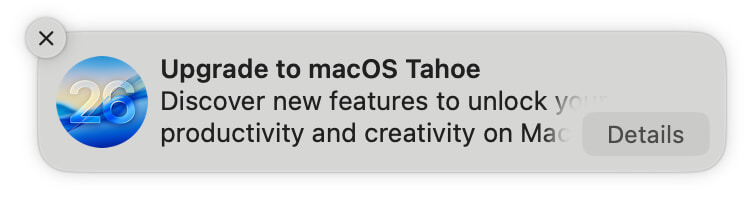 So I have macOS Tahoe on my laptop, but I'm keeping my desktop Mac on macOS Sequoia for now. Which means I have the joy of seeing things like this wonderful notification on a regular basis.
Or I did, until I found a way to block them, at least in 90 day chunks. Now when I open System Settings → General → Software Update, I see this:
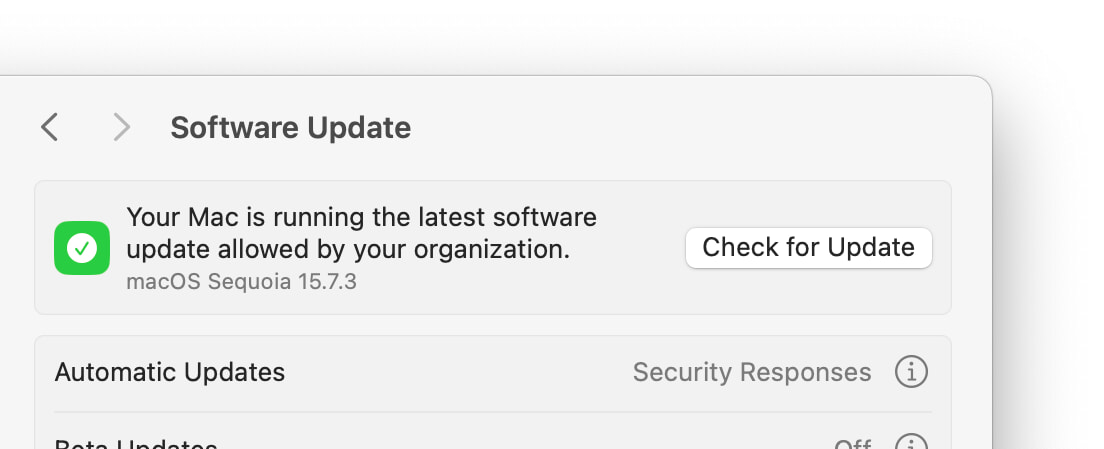
The secret? Using device management profiles, which let you enforce policies on Macs in your organization, even if that "organization" is one Mac on your desk. One of the available policies is the ability to block activities related to major macOS updates for up to 90 days at a time (the max the policy allows), which seems like exactly what I needed.
Not being anywhere near an expert on device profiles, I went looking to see what I could find, and stumbled on the Stop Tahoe Update project. The eventual goals of this project are quite impressive, but what they've done so far is exactly what I needed: A configuration profile that blocks Tahoe update activities for 90 days.
I first tried to get things working by following the Read Me, but it's missing some key steps. After some fumbling about, I managed to get it working by using these modified instructions:
Clone the repo and switch to its directory in Terminal; run the two commands as shown in the project's Read Me:
$ git clone https://github.com/travisvn/stop-tahoe-update.git
$ cd stop-tahoe-update
Set all the scripts to executable (not in the instructions):
$ chmod 755 ./scripts/*.sh
Create and insert two UUIDs into the profile (not in the instructions). To do this, use your favorite text editor to edit the file named deferral-90days.mobileconfig in the profiles folder. Look for two lines like this:
<key>PayloadUUID</key><string>REPLACE-WITH-UUID</string>
You need to replace that text with two distinct UUIDs; the easiest way to do that is to run uuidgen twice in Terminal, then copy and paste each UUID, replacing each REPLACE-WITH-UUID text with the UUID. Save the changes and quit the editor, unless you want to make the following optional change...
Optional step: I didn't want to defer normal updates, just the major OS update, so I changed the Optional (set to your taste) section to look like this:
<!-- Optional (set to your taste) -->
      <key>forceDelayedSoftwareUpdates</key><false/>
Just to be clear, you need to delete the other lines in this section, leaving just the above as-edited line. Thanks for the heads-up, Daring Fireball!
This way, I'll still get notifications for updates other than the major OS update, in case Apple releases anything further for macOS Sequoia. Remember to save your changes, then quit the editor.
Run the script as described in the project's Read Me:
./scripts/install-profile.sh profiles/deferral-90days.mobileconfig
When run, you'll see output in Terminal indicating that you're not done yet:
Installing profile: profiles/deferral-90days.mobileconfig
profiles tool no longer supports installs.  Use System Settings Profiles to add configuration profiles.
Done. You may need to open System Settings → Privacy & Security → Profiles to approve.
You'll also get an onscreen alert saying basically the same thing.
To finish the installation, open System Settings and click on the Profile Downloaded entry in the sidebar. This will take you to a screen showing the profile you just added. Double-click on that profile, and a dialog appears showing the settings; here's how mine looked, reflecting the changes I made to remove minor updates from the policy:
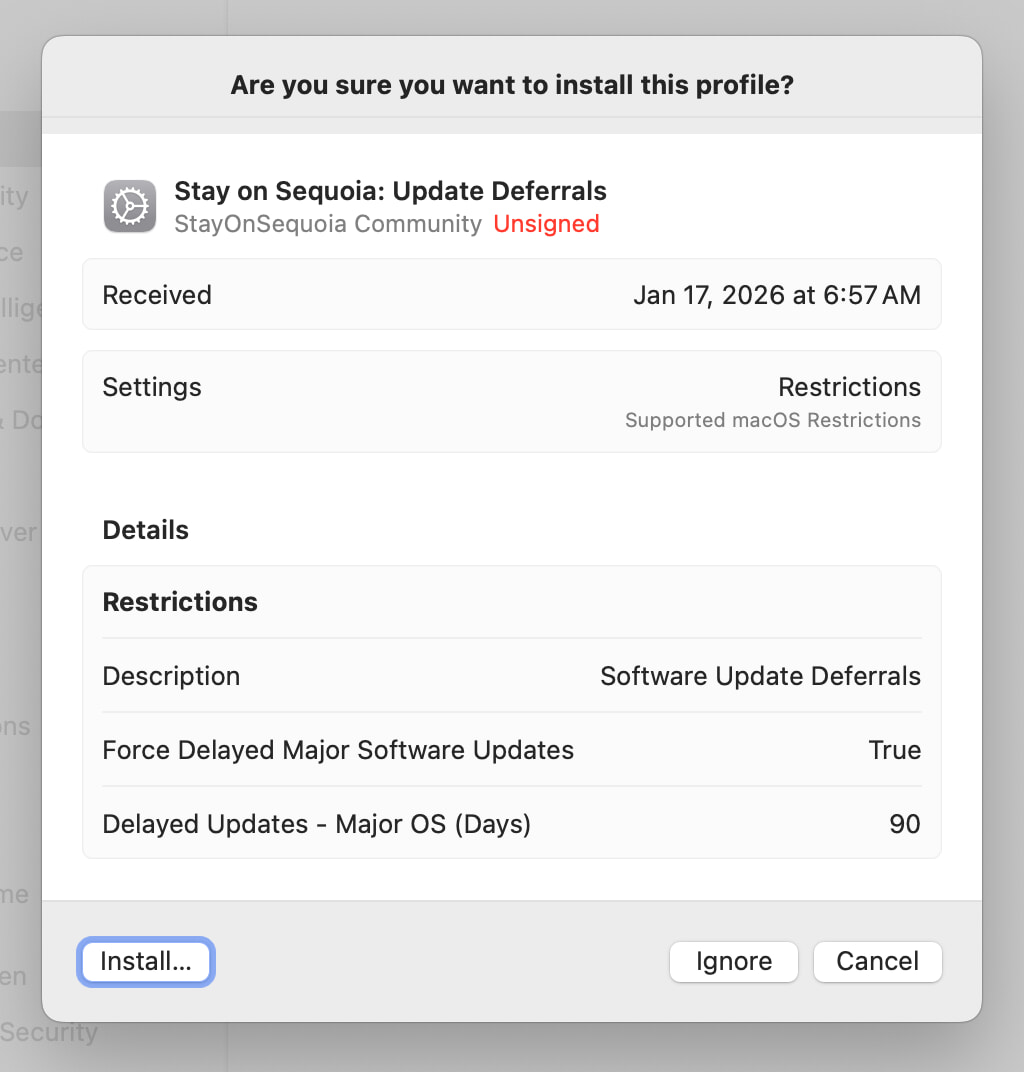
Click the Install button, which will lead you to Yet Another Dialog; again click Install and you'll finally be done. Quit and relaunch System Settings, and you should see a message like mine at the top of the Software Update panel.
As I've just done all this today, I'm not sure exactly what happens in 90 days. I imagine I may be notified that the policy has expired, or maybe I'll just see a macOS Tahoe update notification. Either way, you can reinstall the policy again by just running the install-profile.sh command again. Alternatively, and to make things much simpler, here's what I've done…
I copied my modified profile (the deferral-90days.mobileconfig file in the Profiles folder) to one of my utility folders, so I could remove the repo as I won't need it any more. Then I looked at the install script, which tries to install the profile using the profiles command, and if that fails, it then opens the profile to install it. In Sequoia, you can't use profiles to install a profile, so only the open part of the command is needed.
Once I figured out I only needed to use the open command, I added a simple alias in my .zshrc configuration file:
# Reinstall the no-Tahoe 90 day policy
alias notahoe='open "/path/to/deferral-90days.mobileconfig"; sleep 2; open "x-apple.systempreferences:com.apple.preferences.configurationprofiles"'
Now I just have to type notahoe every 90 days, and the profile will be reinstalled, and System Settings will open to the profiles panel, where a few clicks will finish activating the installed profile. We'll see how that goes in April :).
I am so much happier now, not being interrupted with the Tahoe update notification, and not having the glaring red "1" on the System Settings icon.
Thank you..
This will only defer an update for 90 days **from the release date**. You can see a table of deferral dates in the [SOFA](https://sofa.macadmins.io/release-deferrals) project.
You will soon see macOS 26.0 (and 26.0.1) as 90 days have already passed since its release date. On January 31st, you will see 26.1, and so on.
Great find Adam. If I interpret what you are saying and from personal experience:
1. I NEVER received the forced / heavy handed / Persistant Nag / Red Bubble until 26.2
2. Ran the deferment today, so if I interpret this, I am good until March 11th
3. Chances are good there will be a 26.2.x or 26.3 within the next 90 days, so by this logic re-running it against say 26.3 extends again. Correct?
I support and manage Macs in the enterprise world, so I'm quite familiar with deferral profiles (for better or worse). Historically, there have been bugs with deferrals not being honored with the heavy handed or notification-driven upgrade reminders.
There is no deferment to run, really. It's a setting enforced by Configuration Profile, which is always set and active. Any new OS update or upgrade will be deferred for 90 days, as long as that profile is installed.
Thanks for turning me on to the stop-tahoe-update project!
Luckily I am still on 15.7.3, but I see that as of 3 days ago Apple released 15.7.4.
While I would normally embrace the security update (while avoiding Tahoe), due to the nature of this exploit (if you can call it that) being a bug in 15.7.3, I'm leery about upgrading to 15.7.4.
I ran through your steps and I can confirm that this did block the nagging to update to 26.2, but now I'm being nagged to upgrade to 15.7.4. *Sigh*
Solved in this video;
https://www.youtube.com/watch?v=GrNJSIywjnY
No more updates or update notifications.
It works and its easy.
This is a great tutorial thanks! Saw this on Daring Fireball. Worked great for me, I only needed to make the change to the profile file to set:
forceDelayedSoftwareUpdates
The install shell script already takes care of generating UUID's and finds the profile location so I only needed to run:
./scripts/install-profile.sh and then go to profiles in System Settings to activate it.
Is there a way to continue to get Sequoia OS and app updates, but not see the Tahoe-specific updates that Apple uses to trick people into upgrading, like the Safari 26.3 update? Seriously what is wrong with these people?
THANK YOU
Now, how do I do this on my iPhone??
This seems to have worked.
As a timesaver you can run uuidgen within vi and copy/paste the UUID into the file. At the command prompt (the : bottom left), type a ! and the command (in this case type !uuidgen) and it will return a shiny new UUID. Or you can simply run it twice in Terminal and append it to the file:
uuidgen >> profiles/deferral-90days.mobileconfig
uuidgen >> profiles/deferral-90days.mobileconfig
and then just copy/paste them into position from the end of the file.
Brilliant, thank you!
There is a MUCH easier and more persistent solution and it doesn't require all of this hoop jumping.
Go into Software Update, switch your Beta Updates to the macOS Sequoia Public Beta channel and enjoy your nag free Sequoia experience. Done and done.
No profiles, no expiration. Just a quick and painless removal of those persistent Tahoe upgrade nags.
TY - This seems to have worked on all my Mac devices.
Jeff, thanks so much, this worked like a charm! And I'm also now updated to 15.7.5, which wasn't even an option before.
I’m happy to discover that someone has found a way to stop the nagging. But these directions are way above my confidence level. I found an alternative fix in a YouTube video: https://www.youtube.com/watch?v=uRg1pW8TSYk. It requires a free app, iMazing Profile Editor. The name sounds, to me, sketchy, but it's apparently a respected tool for system admins. I followed the (painstakingly clear) directions in the video and for the first time in weeks, no nags. I'm on 15.7.4.
As they say on the Internets, hope this helps.
Oh yeah! Cranking up a little macosxhints action! Feels good, man. :)
R.I.P. macOS. You were so good for a few years there. :
Great stuff, but broke Apple Pay on my Mac 15.7.4. Started exhibiting this https://discussions.apple.com/thread/255676416. Tried various other troubleshooting steps. Uninstalling the profile and a restart resolved the issue.
Just a heads up, manually adding UUIDs causes this to break now (profile appears as "Error" in System Settings). Just clone and run the script.
Unfortunately in 15.7.5 it no longer seems to work even after removing and reinstalling the policy :(
I agree with Pete.
> Unfortunately in 15.7.5 it no longer seems to work even after removing and reinstalling the
> policy :(
Something seems up now that I'm on 15.7.5. Hmm
As noted in the note at the top, this was apparently a bug, which they fixed in 15.7.5. Now I have to decide if I want to install that version or not :).
-rob.
As Jeff called out above, setting your beta track to the Sequoia Public Beta is a far better workaround. I wouldn't say it's supported, but it may be as close to supported as you'll get.
Can confirm it stopped working after I upgraded to 15.7.5 today. It was working when my laptop was in 15.7.4.
Thank you everyone recommending the Sequoia Public Beta trick! Simpler and quicker than installing profiles!
Now, how do we prevent "Safari 26 for macOS Sequoia" showing up in updates as well? As if I understand correctly it comes with all bad stuff from Tahoe? Rounded tabs and all that crap?
Actually it doesn't - you can update Safari to the latest version without any worries. The rounded corners and crap comes from the Operating System not from the browser itself. I have Safari 26.5 running on 15.7.4 and it looks exactly as it should look.
If you want to stop macOS from nagging you about upgrading to “Tahoe” (or any newer macOS version), there are a few ways to suppress both the notification pop-ups and the red badge in System Settings.
Turn off macOS update notifications
Open System Settings
Go to Notifications
Scroll to Software Update
Disable:
Allow Notifications
Any banners, badges, or lock screen alerts
This blocks most upgrade pop-ups.