Skip to content

Stupid by design: Voice command uselessness

I drive a 2014 Subaru Legacy; for the most part, I'm happy with the car. But there are some design features that are just comically stupid. Here's one example…

The image at right shows the steering wheel controls on the left side of my steering wheel. The up/down arrows icon is a toggle switch to quickly change the audio track being played (or the radio station preset); it works great, and I use it all the time.

The stupid comes in just below that, with the face/speaking icon button. This button activates voice command mode, which does many useful things, such as dialing the phone, setting a destination for the nav system, etc. But you can also—you guessed it—use it to change tracks. Here's how that works:

  1. Press face/speaking icon.
  2. Wait about one second for the car to say "voice command please."
  3. Say "next track" or "previous track."
  4. Listen to car say "track up" (or "track down"), then the track changes.

Now I ask…who is ever going to use this method of changing tracks? The very first thing you do to use it—pressing the face/speaking icon—requires touching the steering wheel. The same wheel where, roughly an inch above that button, is a toggle switch that will switch tracks in precisely one step!

Did they include the voice command track changing features because someone in Marketing said they had to? Did they think there are people who prefer a slower, more cumbersome process to simply tapping a toggle switch? Did they think there are people who need audible feedback about what they've asked the car to do? (Never mind that they get that feedback by hearing the new track after using the toggle button.) Do they think there are a group of people who will use steering wheel buttons but would never use steering wheel toggle switches?

I honestly have no idea why they included the voice command ability to change tracks, but it definitely strikes me as stupid by design…or am I overlooking some really-obvious use that I'm just not seeing?


The iOS App Store’s paid apps lottery game

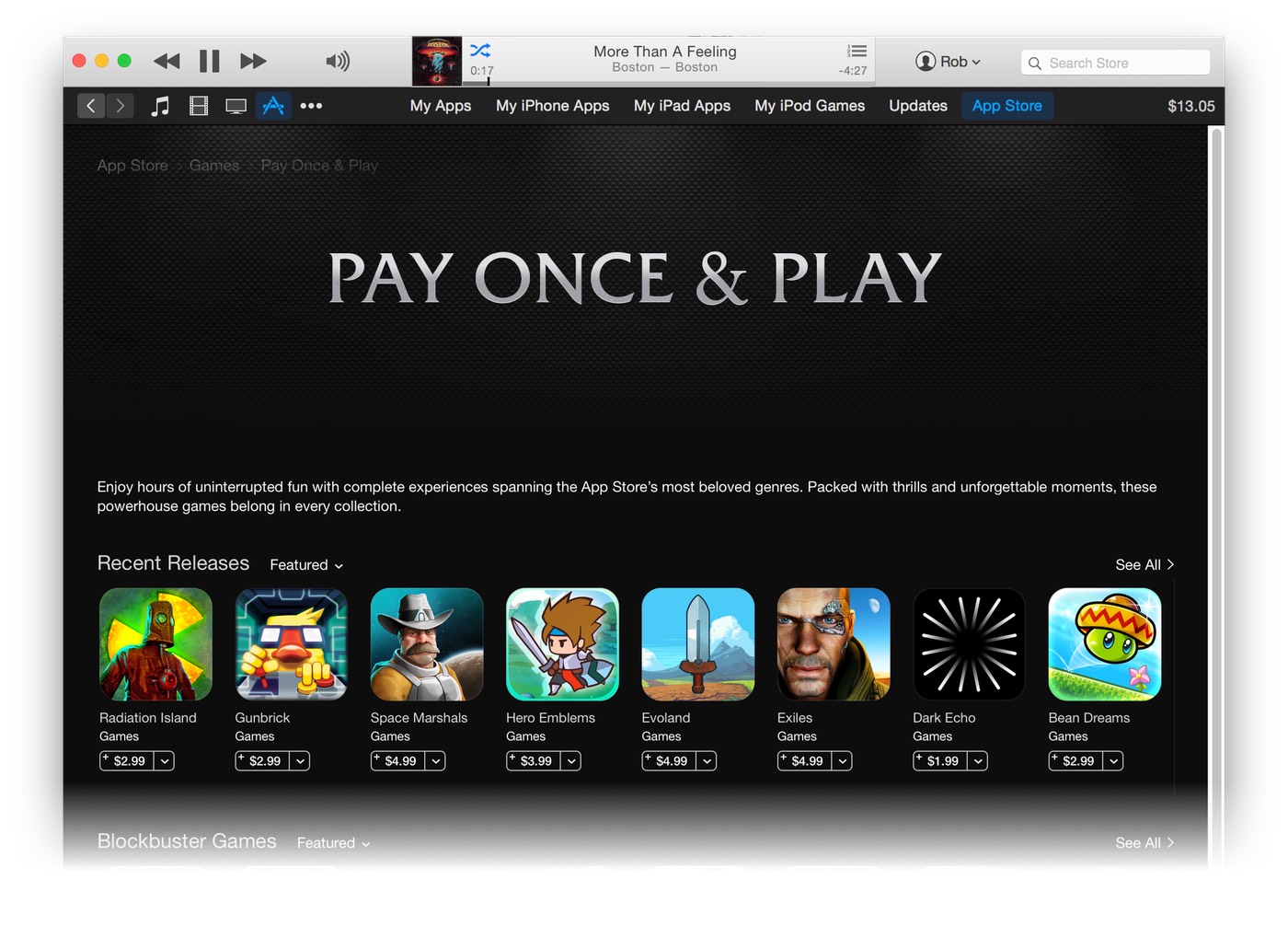
In case you missed it, Apple is promoting "pay once" games in the iTunes App Store:

I think it's amazing that Apple is highlighting pay-once games; anything that helps focus attention away from the freemium model is great in my eyes. I hope this is a regular feature and kept up to date.

Looking at just the apps I can see on the screen without scrolling, there are about a dozen I think I'd like—for a total cost of around $85 or so. But that's where I reach the freeze point: Instead of sending Apple my $85 and trying out a bunch of cool games, I do nothing. That's because if I decide to buy these games, I might as well spend the money on lottery tickets.

You 'win' the iOS lottery if you get a great game for your money. You 'lose' the iOS lottery when you wind up purchasing a steaming pile of donkey dung of a game. Sorry, you lost this time, but please play again soon!

[continue reading…]


How to search the archived Mac OS X Hints site

Late last year, just after its 14th birthday, Mac OS X Hints was officially put into a coma. The site exists online, but it's no longer accepting hints, and exists in a static state.

While it's great that this information is still online—as there are tons of still-useful tidbits there—it's apparently not searchable. When you enter something in the search box and press Enter, nothing happens…well, not nothing: The page reloads with an empty search box. Without search, the huge database isn't quite so useful.

The good news is that Google and Bing have indexed the static site, so you can use their search engines instead of the site's search engine. Even better is that you can build complex queries that aren't possible when searching directly on the site.

To search the hints site from Bing or Google, just include site:hints.macworld.com in the search string. A few quick examples:

While this isn't quite as handy as searching directly on the Hints site, it works well. (To make it easier, I've created a Butler search engine entry that searches hints via Bing.)


Another way to look at 74.5 million iPhones in 90 days

My buddy Kirk came up with some analogies about just how much "stuff" 74.5 million iPhones represents. While I found his comparisons very interesting, as a Finance guy, I have a different method of comparison for you to consider…

I started with guesstimating the mix of of iPhone models and variations sold, using nothing more than common sense that says the mid-tier version would be most popular, with a few more people opting for high-end over low-end:

PricingSales Mix
ModelEntryMidHighEntryMidHigh
6$649$749$84915%60%25%
6+$749$849$94915%60%25%
5s$549$59950%50%
5c$450100%

I then estimated the sales mix by iPhone model, using Tim Cook's statement that the iPhone 6 was the most popular. I distributed the rest of the mix assuming that the newer models would sell more than the older models. Once I had the mix percentages, that let me calculate an average selling price for each phone. Combine that with the estimated sales mix, and out pops revenue by phone line:

ModelAvg SaleShare of TotalUnits (Mil)Revenue ($Mil)
675950%37.3$28,273
6+85930%22.4$19,199
5s57415%11.2$6,414
5c4505%3.6$1,676
Totals74.5$55,562

All those numbers and assumptions crunch down to this:

In one quarter, Apple's iPhone business was somewhere around $55.5 billion dollars in revenue.

One quarter. Not a year. A quarter. Ninety days.

But just on that one quarter's iPhone sales, "Apple iPhones Inc." would be number 50 on the 2014 Fortune 500, coming in just below Caterpillar ($55.656 billion), and above UPS ($55.438 billion). Remember, those are full year results, versus just one quarter's iPhone sales.

A couple other fun comparisons using these assumptions:

  • Google's full-year revenue in 2014 was $60.2 billion, ranking them only four spots ahead of one quarter's worth of "Apple iPhones Inc." on the Fortune 500.
  • Using last year's 169,170,000 total iPhones sold, "Apple iPhones Inc." would be number 13 on the Fortune 500, ranking between CVS and Fannie Mae.

74.5 million iPhones in one quarter is a stunningly huge number. Huge enough to put the fictitious "Apple iPhones Inc" company well up the Fortune 500 based on just 90 days' sales. Mind…blown.


Fix Messages’ image pasting by killing its engine

Kirk McElhearn explains how Messages in Yosemite has trouble sending pasted images. These problems typically only occur between people who use AIM accounts in Messages; sending pasted messages when using iMessages' accounts seems to work fine. (I use an AIM account to keep iMessage traffic off my main Mac, and for its great screen sharing.)

Kirk's article details the fix, which is to kill the imagent process, which is what controls Messages. He uses Activity Monitor to do so, which works fine. But I have to kill the stupid imagent many times a day, so I wrote the World's Easiest AppleScript™ to do the work for me.

[continue reading…]


My post-CNN news sources

With the horrendous redesign of CNN, I quickly determined I had to find a new news source (or sources). After browsing the comments to my post, and doing some searching, here are the changes I've made in my news reading.

The first change is the biggest—I now use an RSS reader for the majority of my news reading. I've always used an RSS reader for most non-news sites, but preferred reading news directly on a web page (not sure why).

But as most sites seem to be heading in the image overload direction, I decided to find news sites with good RSS feeds, and read them using Vienna, my RSS reader of choice.

Why Vienna? I'll write about that in a future post, I think…but its excellent keyboard controls, and its ability to open articles in background tabs, are two of its key features for my reading habits.

The second change is obviously what sites/sources I use in Vienna. Here's my list of new sources, with both the web site and RSS URLs provided:

BBC - US and CanadawebRSS
UPI - Latest NewswebRSS
UPI - US NewswebRSS
Reuters - Top NewswebRSS
Reuters - US NewswebRSS

There's obviously some overlap between these sources, but that's OK; it's easy to mark/skip duplicates in Vienna. When I'm visiting a site on the web, all three (BBC, UPI, and Reuters) present a clean interface, without invasively large photos, and zero auto-playing videos or scrolling marquees. In short, all three are a joy to use on the web, unlike the "new and improved" CNN.

Sorry, CNN, but you've permanently lost at least one viewer; your new site makes it too hard to get what I want, which is news. The BBC, UPI, and Reuters understand that news is what viewers come to a news site to see. Perhaps there's a lesson there for CNN, if they can see it behind those enormous photos and CPU-sucking videos.


Send your Retina iMac’s desktop to deep space

Last week, I used the just-released Hubble Space Telescope images of the Andromeda galaxy to create a couple of desktop images for my Retina iMac. I liked the results so much that I spent some time collecting other suitable images from the Hubble site, and then cropping and/or scaling them to create interesting high-res desktop images. (I used Acorn for all the edits; it had no troubles, even with TIF images as large as 20,323x16,259!)

The end result is a collection of 50+ Retina iMac-sized (5120x2880) desktop wallpapers, courtesy of the Hubble Space Telescope. Here's the full collection:

Tip: If you click on the caption below the image, you'll be taken to the source page on the Hubble telescope site where I found the image.

There are at least two versions of nearly every image—one or more where I cropped out an interesting area of the photo at 5120x2880, and one where I scaled down and then cropped as needed to get as much of the full image as possible.

There are three ways to get an image (or all the images):

Method One: One at a time

  1. Command-click on the image (anywhere other than on the navigation arrows) you'd like to download. This will create a new background tab (in Safari, Chrome, and Firefox, at least), loaded with that image's high-resolution page on my OneDrive.
  2. At the top of the page you'll see a Download icon and text; click there to save the file to your Mac.
  3. Repeat for each image you want, and then organize as you wish, and set them up as rotating desktop images.

Method Two: Another way to get one at a time

Open the full folder on OneDrive, and browse/download directly from there. Click on any image, then click the Download icon to download the selected image to your Mac.

Method Three: Gimme the full set!

If you want all 54 images, just download this zip file from OneDrive.

Images courtesy of NASA/ESA, and full image credits can be found on the linked image page for each image reproduced above.


Why I hate the CNN redesign, quantified

Yesterday I ranted on Twitter about CNN's redesign:

This led to an exchange with a CNN staffer, and a couple people saying "me too!" But it felt it a bit unfair to criticize without specific data. So this morning, I gathered the data, and can now quantify my distaste for the new design.

I compared the current CNN homepage to the latest available on the Internet Archive, calculating how the space was used for each version of the site. The results were eye opening in many ways.


tl;dr summary: The new CNN design displays half as many clickable stories in the same space, with an image that takes 20% of the available screen, and sucks down over 20% of my CPU just to display its home page. Read on for the gory details.

Note: This follow-up entry details my post-CNN news sources and reading methods.


Please leave feedback for CNN if you share my frustrations.
Thanks to Raymond for posting this address in the comments.

[continue reading…]


It’s snowing…in slow motion!

It's just started snowing here in central Oregon, so I shot a bit of slow motion snowfall. The end result is very oddly mesmerizing (open the video in a new window to see it at full size):

The snow looks like some fake Hollywood effect when seen in slow motion. But hey, it's falling, it's sticking, and the kids may get a white Christmas after all!

I hope you and yours have a wonderful holiday…I'm outta here to go play in the snow!


Fake fire … enhanced

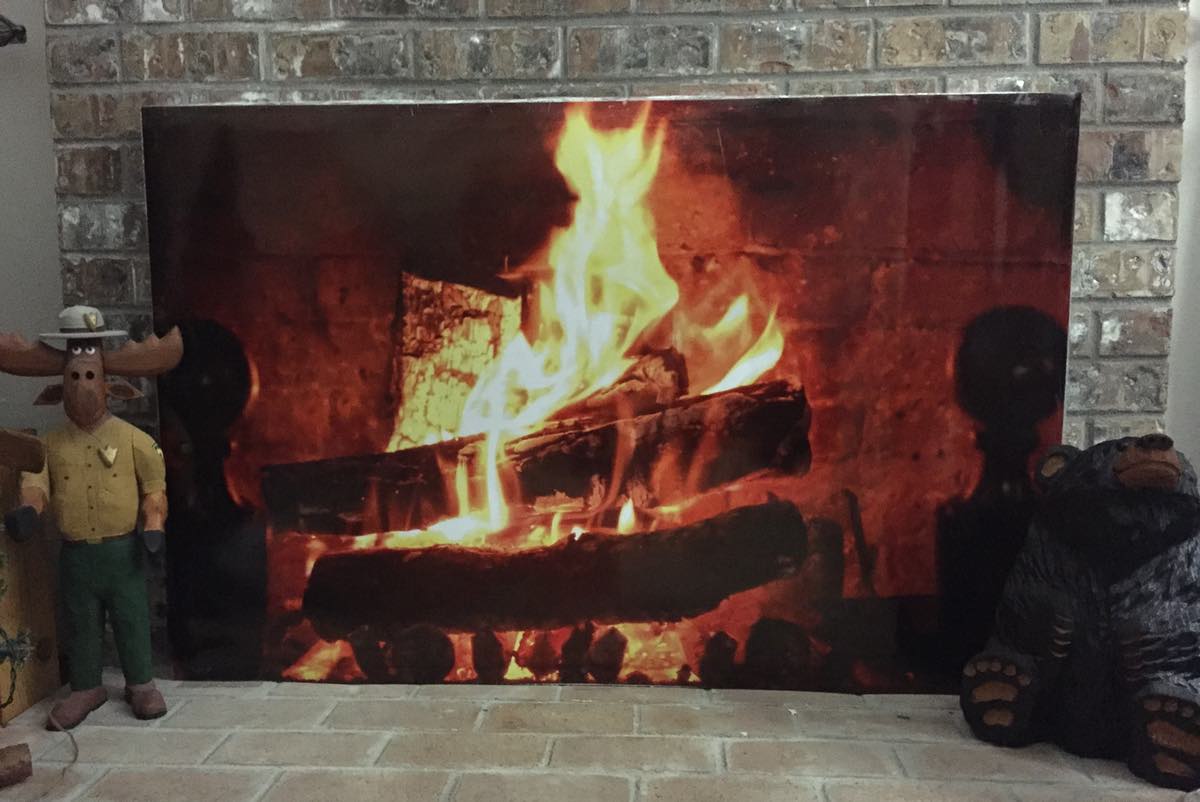
To make our winter-air-blocked non-functional fireplace more visually engaging, I printed a huge fireplace image across multiple pages, and taped them to the fireplace blocker. The end result was usable, but definitely not professional:

So I set out to find a shop to print a 36"x48" poster of the huge image. And because this was clearly an optional project, I wanted to do it as cheaply as possible. After much web searching, I found Poster Print Factory. Their online poster creation tool was easy to use, and the cost ($35 including shipping) was the lowest I found by at least $10.

It took about a week, but the poster arrived and the quality is fine. It's printed on relatively thick stock, and the image itself looked stunning. So now, our artificial fire has been enhanced by a high quality poster overlay:

So much nicer to look at than the silvery surface of a piece of foam insulation! Anyway, if you're looking for some inexpensive poster-sized prints, I was happy with what I got from Poster Print Factory.