Skip to content

General

Stuff that doesn’t fit in any other category

Stupid by design: Voice command uselessness

I drive a 2014 Subaru Legacy; for the most part, I'm happy with the car. But there are some design features that are just comically stupid. Here's one example…
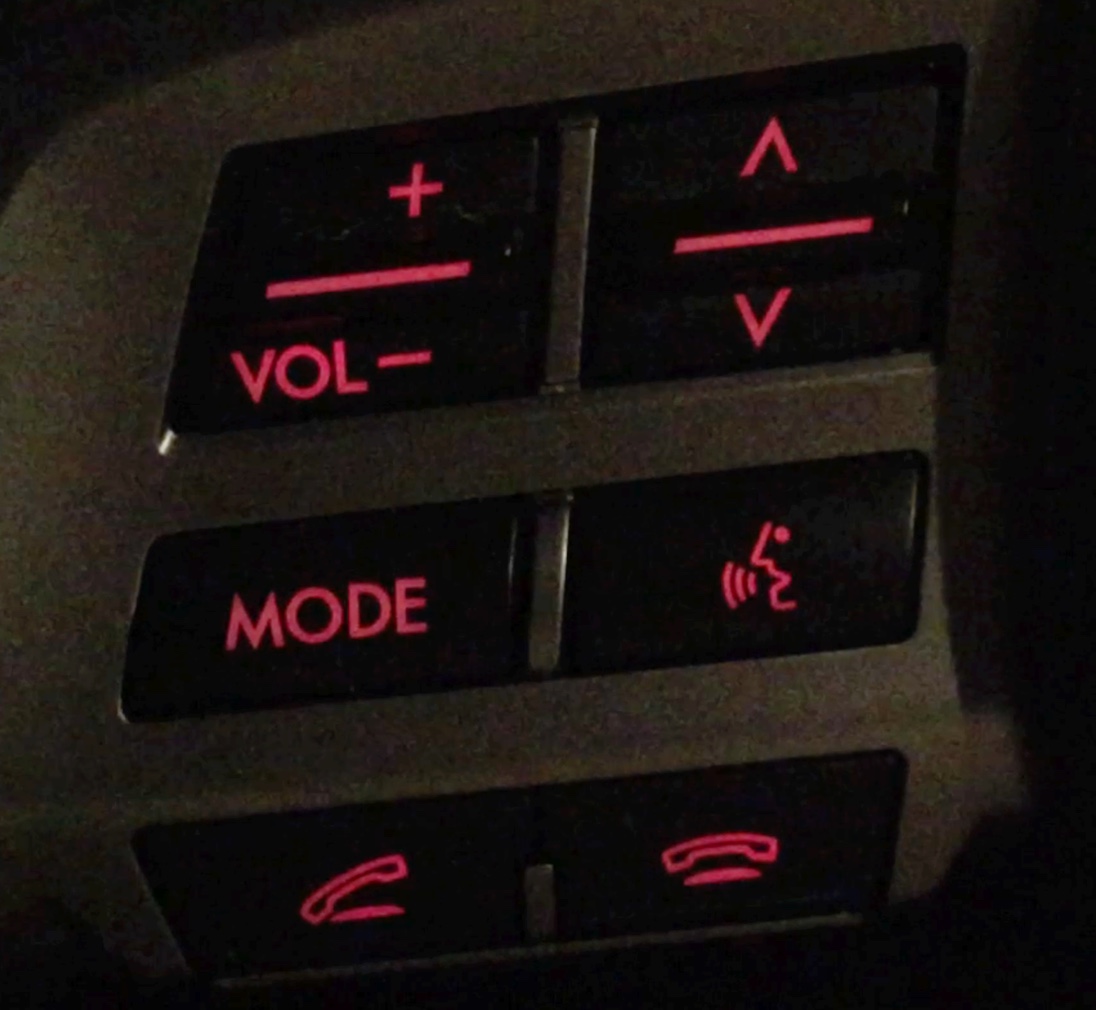
The image at right shows the steering wheel controls on the left side of my steering wheel. The up/down arrows icon is a toggle switch to quickly change the audio track being played (or the radio station preset); it works great, and I use it all the time.

The stupid comes in just below that, with the face/speaking icon button. This button activates voice command mode, which does many useful things, such as dialing the phone, setting a destination for the nav system, etc. But you can also—you guessed it—use it to change tracks. Here's how that works:

  1. Press face/speaking icon.
  2. Wait about one second for the car to say "voice command please."
  3. Say "next track" or "previous track."
  4. Listen to car say "track up" (or "track down"), then the track changes.

Now I ask…who is ever going to use this method of changing tracks? The very first thing you do to use it—pressing the face/speaking icon—requires touching the steering wheel. The same wheel where, roughly an inch above that button, is a toggle switch that will switch tracks in precisely one step!

Did they include the voice command track changing features because someone in Marketing said they had to? Did they think there are people who prefer a slower, more cumbersome process to simply tapping a toggle switch? Did they think there are people who need audible feedback about what they've asked the car to do? (Never mind that they get that feedback by hearing the new track after using the toggle button.) Do they think there are a group of people who will use steering wheel buttons but would never use steering wheel toggle switches?

I honestly have no idea why they included the voice command ability to change tracks, but it definitely strikes me as stupid by design…or am I overlooking some really-obvious use that I'm just not seeing?




My post-CNN news sources

With the horrendous redesign of CNN, I quickly determined I had to find a new news source (or sources). After browsing the comments to my post, and doing some searching, here are the changes I've made in my news reading.

The first change is the biggest—I now use an RSS reader for the majority of my news reading. I've always used an RSS reader for most non-news sites, but preferred reading news directly on a web page (not sure why).

But as most sites seem to be heading in the image overload direction, I decided to find news sites with good RSS feeds, and read them using Vienna, my RSS reader of choice.

Why Vienna? I'll write about that in a future post, I think…but its excellent keyboard controls, and its ability to open articles in background tabs, are two of its key features for my reading habits.

The second change is obviously what sites/sources I use in Vienna. Here's my list of new sources, with both the web site and RSS URLs provided:

BBC - US and CanadawebRSS
UPI - Latest NewswebRSS
UPI - US NewswebRSS
Reuters - Top NewswebRSS
Reuters - US NewswebRSS

There's obviously some overlap between these sources, but that's OK; it's easy to mark/skip duplicates in Vienna. When I'm visiting a site on the web, all three (BBC, UPI, and Reuters) present a clean interface, without invasively large photos, and zero auto-playing videos or scrolling marquees. In short, all three are a joy to use on the web, unlike the "new and improved" CNN.

Sorry, CNN, but you've permanently lost at least one viewer; your new site makes it too hard to get what I want, which is news. The BBC, UPI, and Reuters understand that news is what viewers come to a news site to see. Perhaps there's a lesson there for CNN, if they can see it behind those enormous photos and CPU-sucking videos.


Send your Retina iMac’s desktop to deep space

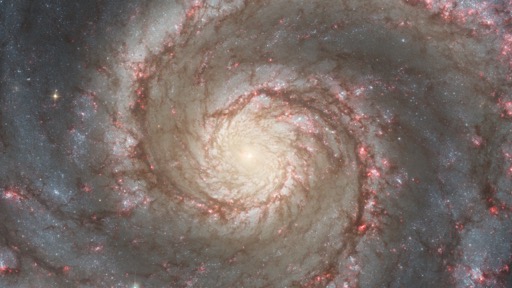
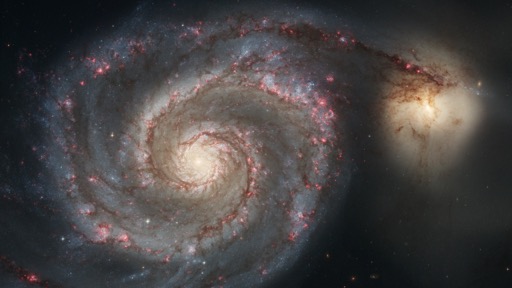
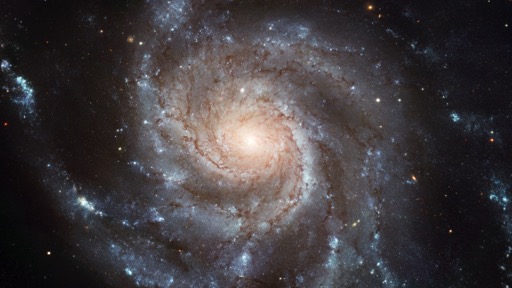
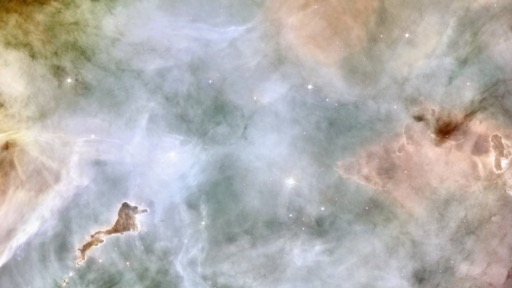
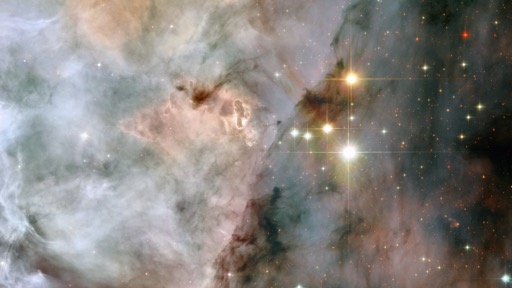
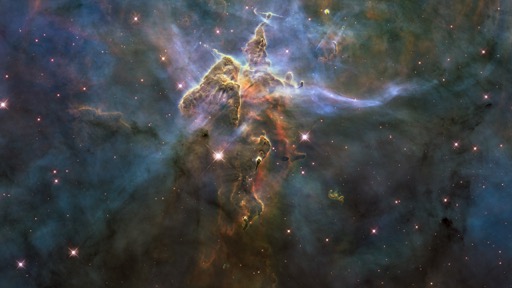
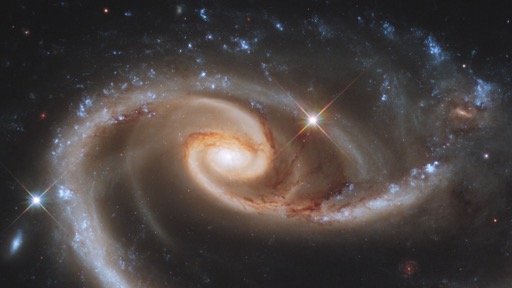
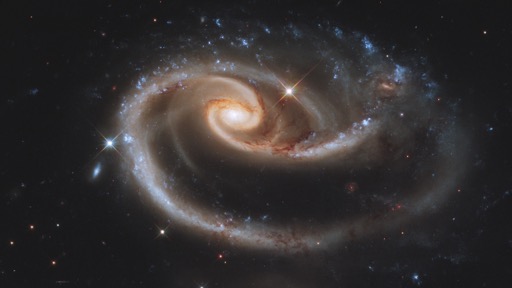
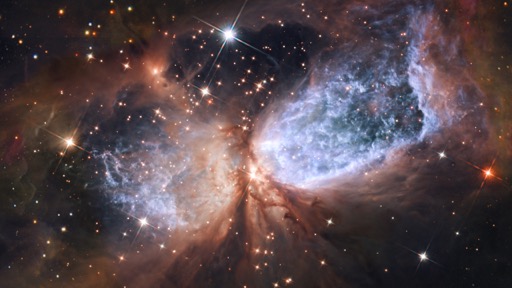
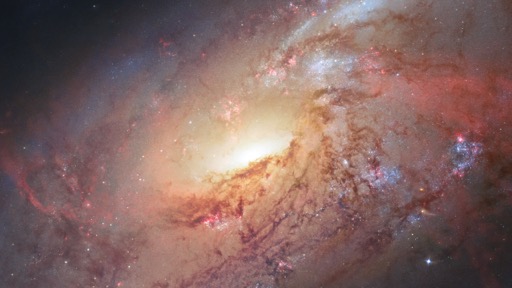
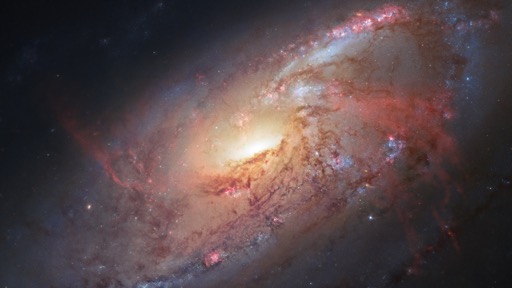
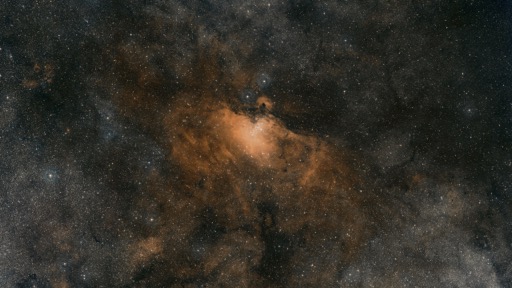
Last week, I used the just-released Hubble Space Telescope images of the Andromeda galaxy to create a couple of desktop images for my Retina iMac. I liked the results so much that I spent some time collecting other suitable images from the Hubble site, and then cropping and/or scaling them to create interesting high-res desktop images. (I used Acorn for all the edits; it had no troubles, even with TIF images as large as 20,323x16,259!)

The end result is a collection of 50+ Retina iMac-sized (5120x2880) desktop wallpapers, courtesy of the Hubble Space Telescope. Here's the full collection:

Tip: If you click on the caption below the image, you'll be taken to the source page on the Hubble telescope site where I found the image.

There are at least two versions of nearly every image—one or more where I cropped out an interesting area of the photo at 5120x2880, and one where I scaled down and then cropped as needed to get as much of the full image as possible.

There are three ways to get an image (or all the images):

Method One: One at a time

  1. Command-click on the image (anywhere other than on the navigation arrows) you'd like to download. This will create a new background tab (in Safari, Chrome, and Firefox, at least), loaded with that image's high-resolution page on my OneDrive.
  2. At the top of the page you'll see a Download icon and text; click there to save the file to your Mac.
  3. Repeat for each image you want, and then organize as you wish, and set them up as rotating desktop images.

Method Two: Another way to get one at a time

Open the full folder on OneDrive, and browse/download directly from there. Click on any image, then click the Download icon to download the selected image to your Mac.

Method Three: Gimme the full set!

If you want all 54 images, just download this zip file from OneDrive.

Images courtesy of NASA/ESA, and full image credits can be found on the linked image page for each image reproduced above.


It’s snowing…in slow motion!

It's just started snowing here in central Oregon, so I shot a bit of slow motion snowfall. The end result is very oddly mesmerizing (open the video in a new window to see it at full size):

The snow looks like some fake Hollywood effect when seen in slow motion. But hey, it's falling, it's sticking, and the kids may get a white Christmas after all!

I hope you and yours have a wonderful holiday…I'm outta here to go play in the snow!


Fake fire … enhanced

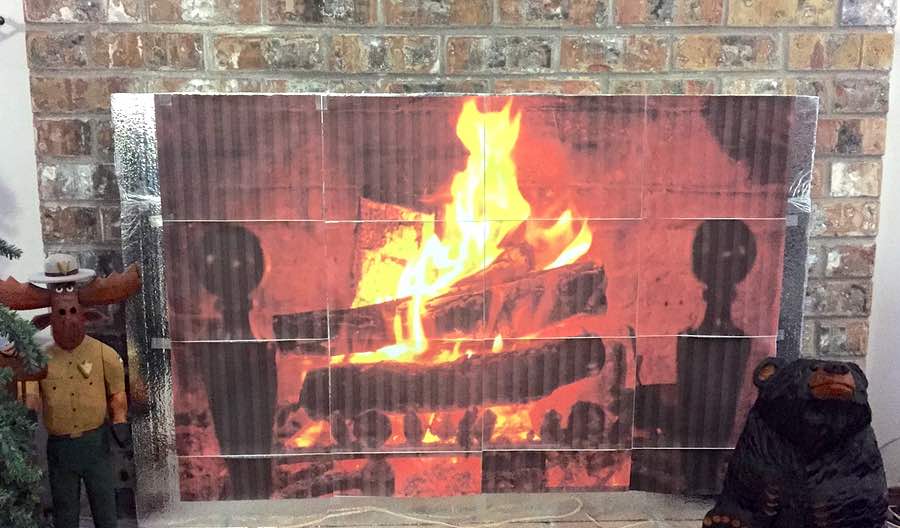
To make our winter-air-blocked non-functional fireplace more visually engaging, I printed a huge fireplace image across multiple pages, and taped them to the fireplace blocker. The end result was usable, but definitely not professional:

So I set out to find a shop to print a 36"x48" poster of the huge image. And because this was clearly an optional project, I wanted to do it as cheaply as possible. After much web searching, I found Poster Print Factory. Their online poster creation tool was easy to use, and the cost ($35 including shipping) was the lowest I found by at least $10.

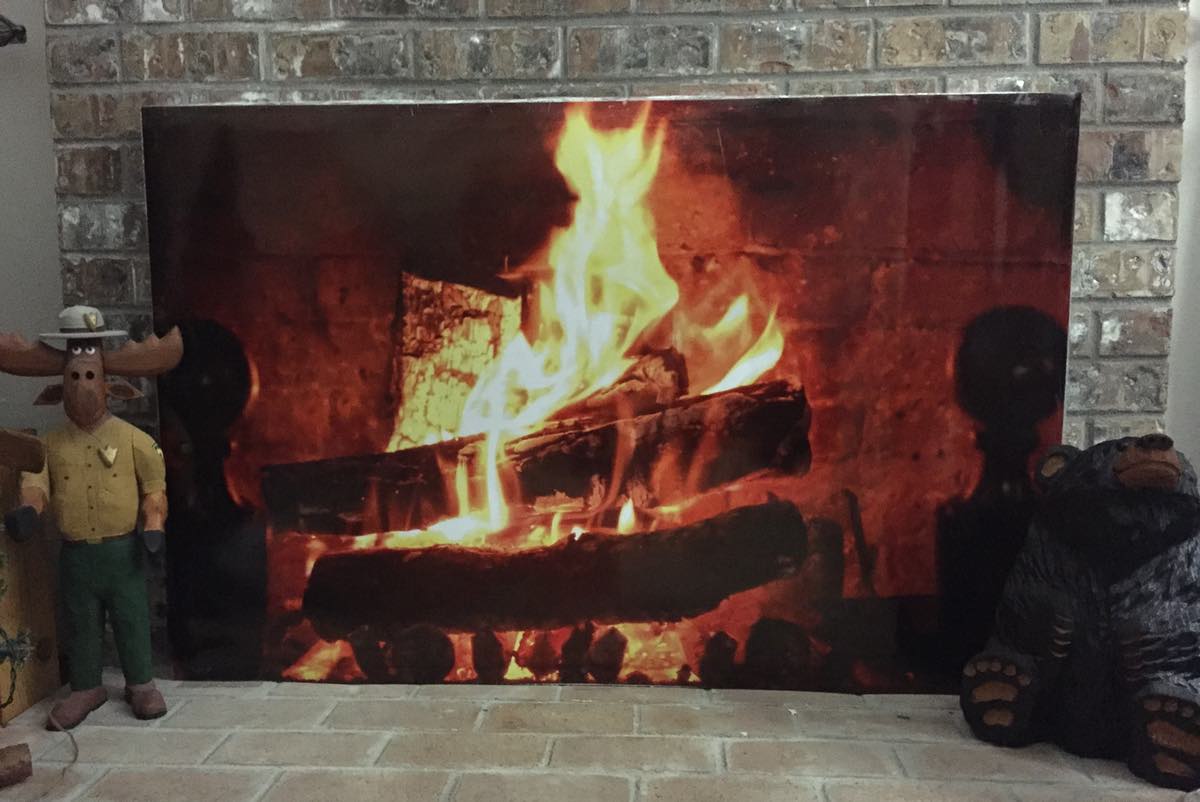
It took about a week, but the poster arrived and the quality is fine. It's printed on relatively thick stock, and the image itself looked stunning. So now, our artificial fire has been enhanced by a high quality poster overlay:

So much nicer to look at than the silvery surface of a piece of foam insulation! Anyway, if you're looking for some inexpensive poster-sized prints, I was happy with what I got from Poster Print Factory.


Span one large image across multiple printed pages

I was looking for a way to print a large image across multiple pages, so I could make my own do-it-yourself poster-size printout. By way of background, I wanted to print a huge virtual fire, to cover a piece of insulation we put in front of a drafty fireplace in the winter. (We don't like to burn wood, so the fireplace goes unused, but staring at a piece of shiny foam insulation all winter isn't all that interesting.)

Conceptually, this seemed pretty easy: find a huge image, open it in some app that handles images, and print. What I found is that doesn't work, at least not in the apps I had at hand (Acorn and Preview). After some web searching, I stumbled across an odd but effective solution: use Excel.

Open a new blank Excel workbook, then select Insert > Photo > Picture From File, and select your massive image. Now when you hit Print, you'll see the output spans multiple pages. I used Page Setup to select a borderless US Letter size, and printed out 16 pages of a roaring fire.

After some cut-and-tape operation, the drafty fireplace's insulation became more visually appealing:

Note that this was a "proof of concept" operation, so I printed in draft mode (hence the vertical striping on the printout) and wasn't overly careful about lining up the pages. I had originally planned to print the final version on glossy photo paper, but instead opted to buy a 36x48 poster-size printout from an online vendor. (I haven't yet received the print, but when I do, I'll post about its quality. Until then, though, I don't want to link to the vendor, as I don't yet know what I've bought.)

I knew Excel could do a lot, but I never thought to try it for printing huge images across multiple pages.


RIP Mac OS X Hints, Nov 4 2000 – Nov 4 2014

Note: The following is my unofficial eulogy for Mac OS X Hints; IDG has not announced any plans regarding the site, though I would hope they'll leave it online, even if no new hints appear in the future. The site is now officially in read-only mode; there will be no new hints. So it's officially comatose, at least.

Dearly beloved…

On this, the occasion of its 14th birthday, we're gathered here to mark the passing of Mac OS X Hints.

While it can be hard to tell exactly when a web site has died, the signs are fairly obvious. It's been over 45 days since the last new hint appeared on the site. There is no way for new users to sign up for an account. There's been one new comment posted in the last two days. A sidebar box proudly proclaims Latest Mountain Lion Hints. The site design, logo, and icons were last updated when I worked for Macworld, over four years ago. To paraphrase a Star Trek character, "it's dead, Jim."

To be fair, it's a bit more Monty Python "I'm not dead!" than officially dead, but really, the site is a dead man walking. Now that I'm done with movie analogies, let me explain why the passing of Mac OS X Hints isn't a bad thing. (Note that Mac OS X Hints' passing is in no way a reflection of its management by Macworld. In fact, the opposite is true: I believe the site would have ceased to exist years ago without their involvement.)

The simple truth is that the need for OS X hints has tapered off to near zero over the last 14 years. And that's a good thing.

[continue reading…]


Mac OS X Hints turns 14

Fourteen years ago today, I launched Mac OS X Hints, with this simple post. The Mac OS X 10.0 Public Beta was only a couple months old, and many Mac users (myself included) were feeling lost in the land of Unix and Terminal. (Despite anything Apple said at the time, Terminal was very much a required aspect of using Mac OS X in those early days!)

Related post: RIP Mac OS X Hints, Nov 4 2000 - Nov 4 2014

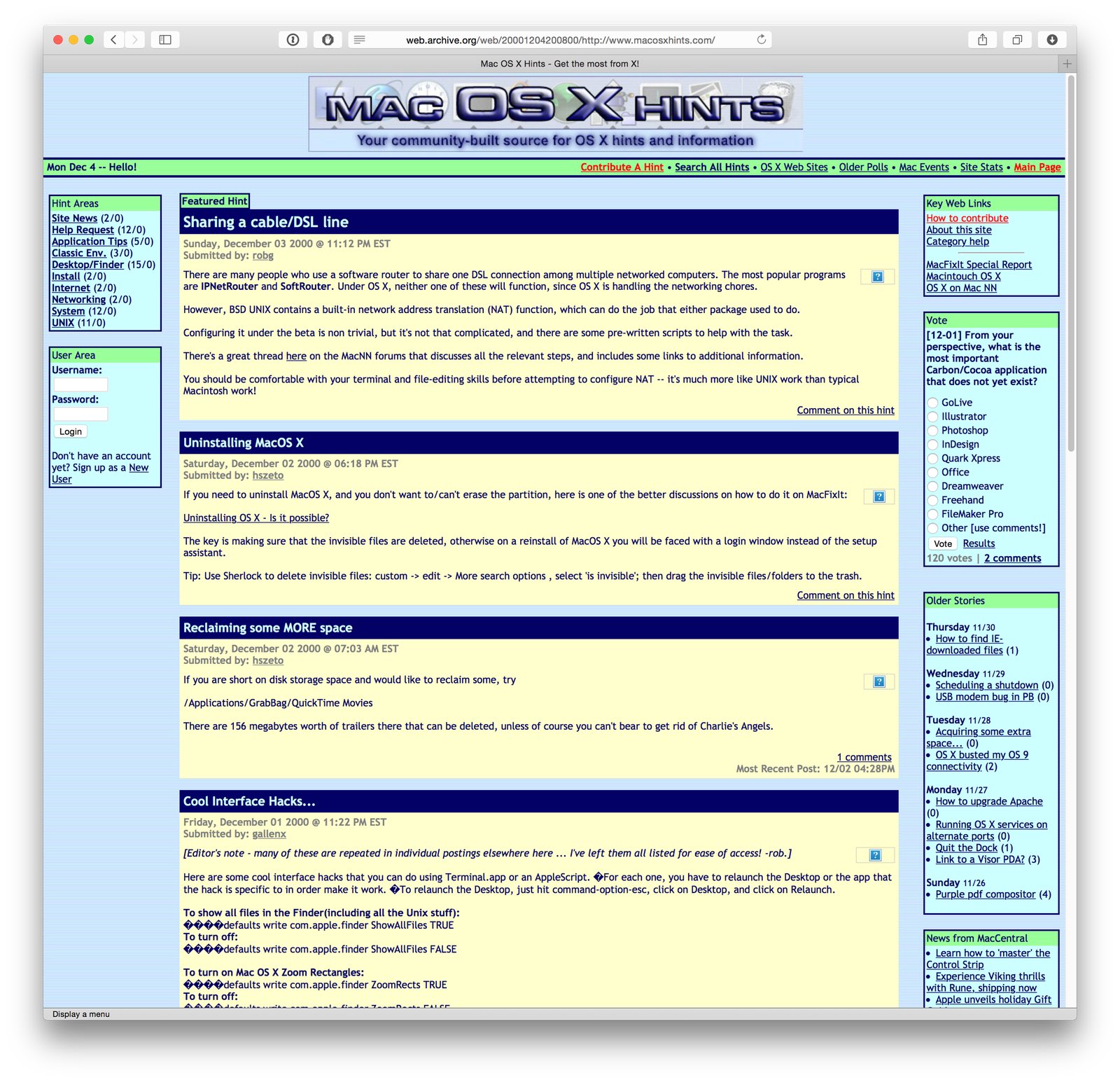
At the time of launch, I knew nothing about content management systems or PHP; I knew enough HTML to be dangerous, and very little about anything else—including design, as you can see from the image at right.

That image, courtesy of the Internet Archive's Wayback Machine, was taken one month after launch. Could it be any brighter and uglier? Probably not. While I did many things wrong during that launch, I did get a few things right…

  • The site was all about the community; it was my intent from day one that it would be a users helping users site, not a "me telling the world what to do" site.
  • The content management system I chose, Geeklog, has proven to be very long lived—fourteen years on, and it's still what powers the site. In all that time, we had (I believe) exactly one hacking incident. Not bad.
  • The site had a laser focus on hints; I'd do a pick of the week, but outside of that, it was all about the hints.

So despite my poor design and lack of PHP skills, the site flourished. So much so that Macworld purchased the site and hired me in June of 2005. I spent nearly five years with Macworld, before leaving in 2010 to join Many Tricks.

In looking back, never in my wildest dreams did I imagine the site would flourish to the point where it would actually change my career. But it did, and for that, I'm eternally thankful to everyone who helped make macosxhints.com what it was. So happy birthday, Mac OS X Hints!


Goodbye cron task, hello launchd agent

On April 29th, 2005, Apple launched Mac OS X 10.4, aka Tiger. With Tiger came launchd, a new Unix-side job scheduling tool. launchd was intended to replace cron, the long-established (and quite cryptic) tool for such tasks.

And now, a mere nine-plus years later, I decided it was time to give up cron and move to launchd myself. Mr. Bleeding Edge, that's me! (Note: Unless you enjoy the Unix side of OS X and currently use cron to schedule tasks, this article won't be of much interest to you.)

Why now, after so long as a holdout? Primarily because I kept running into issues with cron tasks that needed to do things as "authorized me," such as mounting an encrypted disk image, or even just mounting a network share. Or my Mac would be asleep for a scheduled cron task, and it therefore wouldn't run. (launchd will queue any missed tasks to execute when the Mac reawakens.) Finally, my cron file was getting huge and unwieldy, and making simple changes was fraught with danger of breaking something.

So I dedicated a portion of a recent weekend to figuring out launchd, and migrating my cron tasks to this brave no-longer-at-all-new world. If you're still hanging on to cron, read on to see what I've learned about launchd—maybe it'll inspire you to move, too (or not).

[continue reading…]


Wallpapers: iPhone 6

Once I had my iPhone 6 syncing, it was time to get to work on my home and lock screen wallpapers. I have made these for every iOS device I've owned—here's the full collection.

My home screen wallpapers feature a bar to highlight the paging dots, and are typically "low noise" to make it easy to see icons and text. The lock screen wallpapers have no such restriction, and include a little bit of everything.

These wallpapers are 750x1344 pixels in size, and are designed for use on the iPhone 6, as that's what I have. (If you use a Plus, and really like an image or two, let me know and I can make one for the larger phone.) Note that the images shown in the image sliders below (hover and click to cycle) are low-quality 180x320 JPEG representations of the actual photos; to get the high-quality images, download the entire bundle [24MB] and install only those you wish to use.

Home Screens (16)Lock Screens (52)

Note: Due to a quirk in iOS 8, you need to use these steps when installing one of my home screens, otherwise the nav bar (the bar that shows the page navigation buttons) won't be located in the right spot. Here's how, assuming you're in the "Choose a new wallpaper" section of iOS:

  1. Tap the desired home screen icon to see the full-size version.
  2. Disable Perspective Zoom. (It won't work right with the navigation highlight row I use.)
  3. Pinch and zoom out so the image is at it's 100% size.
  4. Now drag the image up and let it bounce—this is the critical step.

If you've done the above steps right, then you'll see quite a few pixels of the nav bar above the Perspective Zoom button (top image). If you haven't done it properly, then the nav bar will barely clear the button (bottom image).

Given the images are the same resolution as the screen, I have no idea why this happens…but it does, and this is the only way to make sure the nav bar winds up where you want it.

License: All photographs in these wallpapers are © Rob Griffiths, and are freely provided for personal use only. You may not include these wallpapers on other sites, nor in any commercial product, without my prior permission. (I hate having to put this here, but prior experience has shown it to be necessary.)