Skip to content

macOS

Folderizing Office 2016

In case you missed it, Microsoft just released Office 2016 for Mac. Well, released if you're an Office 365 customer. I am, so I downloaded the release version today. I'd been playing with the betas, and one thing bugged me: the installer wouldn't let you pick an install folder.
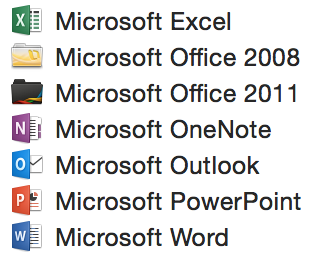
Sadly, the same holds true for the release version; after installation, my Applications folder was the mess as shown in the image at right. Ugh.

My Applications folder resides on my boot SSD, and I like to keep it tiny and tidy. Tiny in the sense that only my most-used apps reside here; others are on my RAID. Tidy in the sense that I don't like looking at long lists of apps that all start with the same word, e.g. Microsoft. So things like Office go into a folder, helping at least the tidy side.

Eric Schwiebert of Microsoft tweeted an explanation for this user-unfriendly behavior:

While I understand the rationale, I don't agree with it. Office isn't yet in the App Store, and even if it were, that's not where I got it from. So why are you affecting my options for a version that neither exists nor that I even have? In any event, I wanted Office 2016 in a folder, so I set out to find a way to do that.
[continue reading…]


For want of a Play All button in Apple Music

As has probably most everyone else, I've started my three-month Apple Music trial. I listened to about an hour's worth of Beats 1 Radio on the first day, and found it basically forgettable. (All the "Beats 1 worldwide!" voiceovers during songs certainly didn't help—but I figure they're doing that to prevent people from recording the high quality stream.)

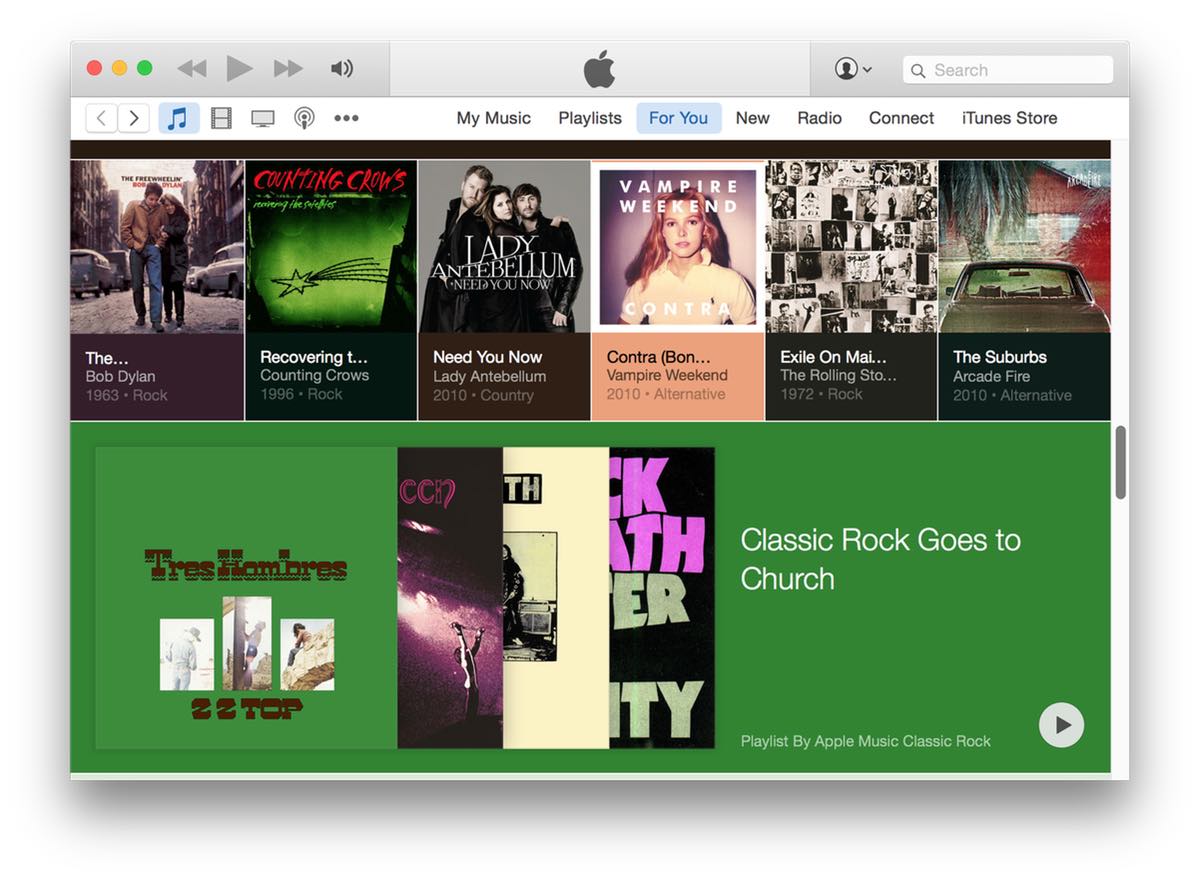
Anyway, I was most interested in the For You feature, as I wanted to discover music similar to what I liked, but that I may not have heard before. Using my iPhone, I went through the "tell us about your tastes" feature in Apple Music, then switched back to my Mac to look at the For You section in iTunes. There I found an assortment of playlists:

Some I wouldn't like, some I would, and (most interesting to me), there were some that had stuff I hadn't heard before. Unfortunately, this is where Apple lost me…

What I wanted to do, as I looked at this wide assortment of music, was just hit the Play button, and let iTunes navigate the entire selection. But I couldn't, because iTunes' playback buttons are all grayed out. Argh!

The only way to listen to these selections is one playlist at a time. But that's not how I listen to music. I enjoy a broad selection of music across many genres, and very rarely do I listen solely to one artist, one album, or even one genre. Why? Because when I do, I wind up getting burned out on that artist, album, or genre, such that I don't want to hear it again for a while.

Instead, I just play music, paying no attention to genre, artist, or album. And once I start iTunes playing, it's typically playing all day without any interaction from me. But if I want to use Apple Music's For Me, I'll have to return to iTunes to pick new selections as each selection finishes. Honestly, for something that's background as I work, that's too much effort.

In the end, as much as I'd like to use the For Me feature in Apple Music, I just can't see myself doing it unless Apple adds a Play All (random, of course) button. Please?


Use Intel’s Power Gadget to keep an eye on your CPU

If you're the type who likes to keep an eye on your system, you may be familiar with tools such as Activity Montior's CPU meters, or iStat Menus, which displays a ton of system info via its menubar icon. Neither of these tools, however, really show you what the CPU itself is up to—and that's where an Intel-provided tool enters the scene.

The Intel® Power Gadget shows you exactly what your CPU is up to: how much power it's using, what speed it's running at, and its temperature. As seen in the image at right (click for larger), it graphs these three values over time.

The data you're seeing there is from my 4GHz Retina iMac, and the screenshot was grabbed while it wasn't doing much in particular. What really stands out to me is how often my 4GHz CPU is running at something closer to 3GHz; if the CPU isn't being called on for its full power, I'm assuming it slows itself down to reduce power usage.

But as soon as you do something that demands the CPU's full power, the napping stops. Here's a brief movie I created showing the CPU tracking when I started ripping a Blu-Ray:

The machine is basically idle at first, then I start the rip after 15 seconds or so. As soon as the hard work starts, the power and temperature charts shoot upwards, and over time, the CPU speed pegs right around 4GHz; the naps are gone.

I'm not sure how much real-world use this tool has, but from a geeky perspective, it's pretty cool being able to see exactly what your CPU is up to at any point in time. (You can even send the data to a log file, in case you really want to study power, speed, and temperature over an extended time period.)


Fix Messages’ image pasting by killing its engine

Kirk McElhearn explains how Messages in Yosemite has trouble sending pasted images. These problems typically only occur between people who use AIM accounts in Messages; sending pasted messages when using iMessages' accounts seems to work fine. (I use an AIM account to keep iMessage traffic off my main Mac, and for its great screen sharing.)

Kirk's article details the fix, which is to kill the imagent process, which is what controls Messages. He uses Activity Monitor to do so, which works fine. But I have to kill the stupid imagent many times a day, so I wrote the World's Easiest AppleScript™ to do the work for me.

[continue reading…]


Span one large image across multiple printed pages

I was looking for a way to print a large image across multiple pages, so I could make my own do-it-yourself poster-size printout. By way of background, I wanted to print a huge virtual fire, to cover a piece of insulation we put in front of a drafty fireplace in the winter. (We don't like to burn wood, so the fireplace goes unused, but staring at a piece of shiny foam insulation all winter isn't all that interesting.)

Conceptually, this seemed pretty easy: find a huge image, open it in some app that handles images, and print. What I found is that doesn't work, at least not in the apps I had at hand (Acorn and Preview). After some web searching, I stumbled across an odd but effective solution: use Excel.

Open a new blank Excel workbook, then select Insert > Photo > Picture From File, and select your massive image. Now when you hit Print, you'll see the output spans multiple pages. I used Page Setup to select a borderless US Letter size, and printed out 16 pages of a roaring fire.

After some cut-and-tape operation, the drafty fireplace's insulation became more visually appealing:

Note that this was a "proof of concept" operation, so I printed in draft mode (hence the vertical striping on the printout) and wasn't overly careful about lining up the pages. I had originally planned to print the final version on glossy photo paper, but instead opted to buy a 36x48 poster-size printout from an online vendor. (I haven't yet received the print, but when I do, I'll post about its quality. Until then, though, I don't want to link to the vendor, as I don't yet know what I've bought.)

I knew Excel could do a lot, but I never thought to try it for printing huge images across multiple pages.


Fun with iTunes’ new math

Unlike my previous incidents with iTunes and iOS devices, today's report isn't on a sync problem per se.

It's more like a math problem which then leads to a sync problem. Here's the tl;dr version: I have an iPad with 5GB of free space, and I cannot add a 1.8GB movie to it, as iTunes eventually tells me it needs another 526MB of space in order to do so.

During the attempted sync of this movie, iTunes displays some horridly bad math skills; just watch the video to see.


Here's the video at its full size (1164x1056).

I have no idea how to resolve this, short of restoring the iPad, which I'd rather not do. (I've already unsynced and resynced everything, in an attempt to straighten out the math, but to no avail.)


Use your Marketing department to drive away prospects

I needed to install a demo version of Parallels Desktop for Mac to work on an issue some of our Many Tricks customers are having with Witch.

On Parallels' site, when I clicked the "Try It Free" button, I was greeted not with a download, but with a dreaded email harvester:

Unless I was willing to provide an email address, I was not going to get the demo. To Parallels' Marketing department, I'm sure this is viewed as a huge win: "Look, if we require an email address to get the demo, we'll build a massive mailing list of potential buyers!"

But to a prospective customer, what this harvester says is "we really don't care about your experience, we want to harvest your email address."

An email harvester is only as useful as what it harvests. And from me, and I suspect many others, it harvested a "I only use this for junk mail" email address. So while Marketing is collecting a huge list of email addresses, that list is littered with any number of useless addresses.

Contrast this approach with VMWare's Fusion demo download: Click one button, and the download begins. In the past, VMware also collected email addresses, but it seems they've realized that building a huge list of mainly worthless addresses is, well, worthless.

Unfortunately for Parallels, using the demo is even more annoying than downloading it, "thanks" (again) to the Marketing department.

[continue reading…]


Revisiting iTunes/iOS sync issues

After getting my iPhone 6 in early October, I was initially excited by all the cool tech in my new phone. Until I tried to sync it, that is. I eventually got so frustrated that I emailed Tim Cook for help. From that email, I wound up talking to Apple's engineers, who eventually solved my sync issues—it turns out they were related to duplicates of long-ago-purchased songs.

Welcome to
Sync Hell

And for a while, things were great in iPhone 6 land. Then I ripped a few new CDs, and noticed that they didn't show up on the phone. Uh oh. Even worse, when I looked at my iPhone in iTunes, the Music section contained hundreds, if not thousands, of the dreaded gray dotted circles.

This seemingly innocent symbol means that the indicated song did not sync—the information about the song made the journey to the phone, but the song itself did not. Argh! Read on to see how I muddled through this issue, with some advice that may, or may not, help you with your own sync issues.

If you don't want to read everything, here's a tl;dr version:

  • My iPhone sync issues returned, along with a huge-fake-but-limiting amount of data shown in Other.
  • There's a known-to-Apple "very slow performance" issue in iOS/iTunes that can make some iPhones sync very slowly (fixes have been made, but not yet released).
  • A factory restore failed to complete until I rebooted the iMac.
  • After the restore, the sync worked, but I still had a huge Other category.
  • After the iOS 8.1.1 update, the huge Other category vanished.
  • I had to manually unsync/resync a number of songs to clear their gray dotted circles.
  • It may help to do a voodoo dance, sacrifice three Nokia phones, and rub your stomach while patting your head before syncing.

Read on for the gory details…except maybe for that last item, which I totally made up.

[continue reading…]


Seeking clarity in Retina iMac desktop images

I'll admit it: I'm a desktop image (nee wallpaper) addict. I love to use a wide variety of images, and change them often throughout the day, just to keep my work environment fresh. On my two external displays, I use iPhoto images—general photos on one, kid pictures on the other. But for the main iMac screen, I prefer to use photos taken by others—typically stunning landscapes and cityscapes from all over the world.

With the arrival of my 5K iMac, however, my existing collection was no longer sufficient. Yes, they were all 2560x1440 images, which matches the "apparent" resolution of the Retina iMac. But in order to make that image fill the Retina iMac's screen, it's first scaled up to 5120x2880, then displayed by OS X at 2560x1440. As a result, my desktop images aren't nearly as sharp looking as they were on my old 27" iMac's display.

As an example, here's a segment of two versions (2560x1440 and 5120x2880) of the Sydney Skyline, as screen-captured when set as my Retina iMac's desktop picture. As you move the divider bar right, you're revealing more of the 2560px version; move it left, and the 5120px version takes over.

After scrolling back and forth a bit, you might be thinking these pictures are identical, and I'm just seeing things. While I may be seeing things, the pictures are not identical. (Compare some closely-spaced lights and the crispness of vertical lines in each image to spot the differences.)

Read on for a closer look at the image, which really shows what you're losing by using a 2560x1440px desktop image on a Retina Mac…as well as a list of places I've found that have 5120x2880px images available.

[continue reading…]


Yosemite’s constant clattering clutters Console

For those who aren't familiar, Console (found in Applications > Utilities) is an application that shows you what's happening beneath the lovely skin of OS X. Open the application, and you'll see a combination of status and error messages from any number of sources.

If you've never looked at Console before, you might be surprised by just how much stuff gets written there. But with the release of Yosemite, things have really taken a turn for the worse—the amount of stuff written to Console is greater than I recall for prior OS X releases.

As a test, I set up a new Yosemite virtual machine, installed ScreenFlow (and nothing else), then launched and interacted with a number of Apple's apps for two minutes while recording the screen. The results are quite sobering; here's what two minutes of Console logging looks like, reduced to a 10-second movie:

As you can see, there are a lot of Console entries in just two minutes.

[continue reading…]