Skip to content

Apple Universe

Top-level category for all Apple, Mac, and OS X related topics.

Why I still use the admittedly-awful Messages

A while back, David Chartier tweeted this:

https://twitter.com/chartier/status/718107492966862849

David really doesn't like Messages (for many valid reasons), and has often tweeted and written about other, better messaging platforms, including his current best-of-breed example, Facebook's Messenger.

And you know what? In general, I agree with David: Messages sucks. It's got latency issues, messages sometimes vanish, shared URLs are ugly, search is troublesome, it lacks many features found in other apps, etc. Yet still, it's my messaging app of choice, and will remain my messaging app of choice, probably forever. Why?

First of all, it's bundled with every Mac and iOS device sold, which means that most of the people in my social group already have it and use it. I don't have to send a link to someone and explain how to install the app, set up an account, find my name/phone number, add me to their group of friends, and initiate a conversation.

Does that make Messages good? No, just because an app is bundled doesn't mean it's excellent. (See previous generations of Internet Explorer on Windows, for instance.) But it does make it pervasive, and in a messaging app, that's what I want.

But even beyond that—even if Messages were so abysmal it lost 50% of the messages I sent and often force rebooted my devices and remotely spilled my milk—I would probably continue to use it. Why? Because Apple isn't in the business of making money off of who I talk to, what I talk to them about, or what devices I use to do that talking. Apple wants to sell devices, not data about how people are using Apple's devices.

[continue reading…]


Images replace content in USA Today’s iOS app

Yesterday, I noticed that USA Today had a new iPad app out—they released it as a separate app, so it didn't replace the old version. After trying the new app, I'm incredibly glad they chose to release the new version as a new app, because it sucks. Absolutely, positively, sucks.

Like the recent CNN redesign, USA Today has chosen to focus on pretty pictures instead of information. In other words, it's become another news app that has decided not to show any news.

Here's a side-by-side comparison of the old (left) and new (right) apps:

As you can see, the new app is dominated by one massive image, and very little of anything else. Here's a quick comparison of just how bad things are in the new app:

Data points…Old AppNew App
Stories visible63
Words shown14843
Weather visibleYesNo
Navigation visibleYesNo
Ads visible01
Largest image on page386x2201024x475
% of page covered by image10.70%61.80%

If you're scoring at home, which I am, the new app has a 50% reduction in the number of visible stories, and a 71% reduction in the number of words. And that insanely-huge 'hero image' covers nearly 62% of the page!

In addition, there's no visible weather, and navigation between sections is now hiding in a hamburger menu. Overall, the usability of the app has gone from very good to basically worthless.

This is progress? I don't think so. I'm staying with the old app, and giving the new one a one-star review on the App Store. Bad move, USA Today!


Replace the departed free iTunes Radio with free iTunes radio

In case you missed the news, Apple has now officially ended the free streaming of iTunes Radio. To listen to these stations now, you have to subscribe to Apple Music, which isn't something I want to use. (If they offered a "use but don't integrate into library," I'd subscribe in a heartbeat…but they don't.)

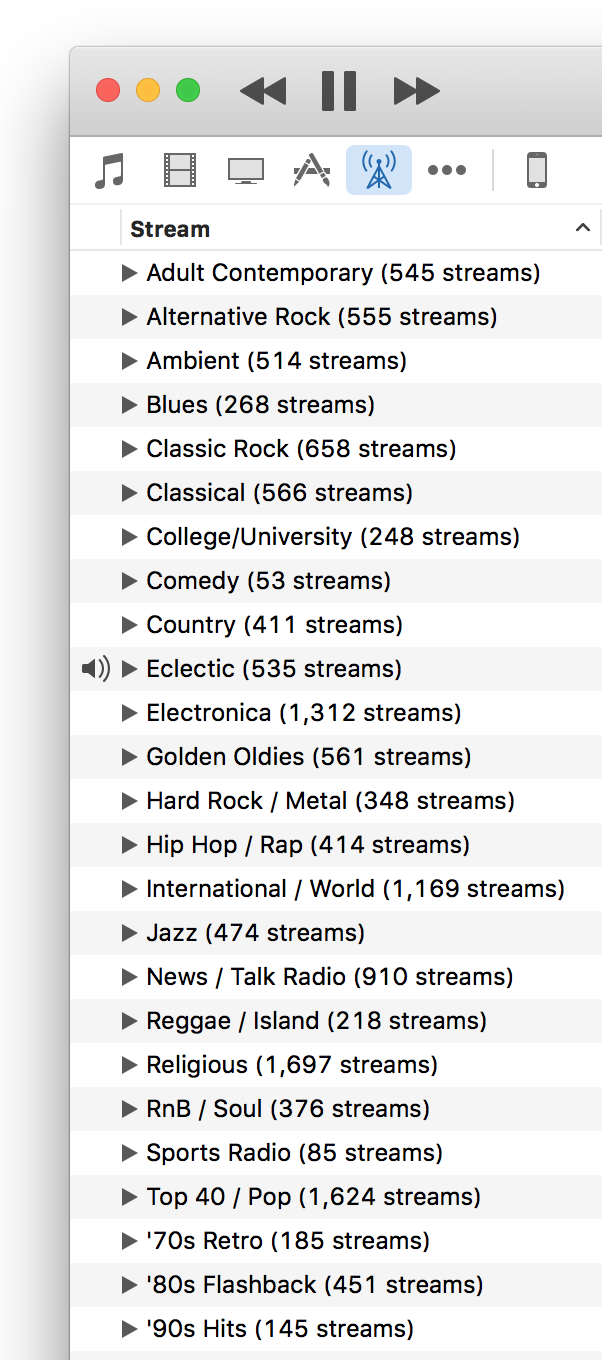
There are any number of other radio services out there - Pandora, Spotify, etc. But I wanted something that existed in iTunes, as I didn't want to have to run another app, nor (shudder) use my browser as a radio station front end. Then I remembered that iTunes has a huge—as in tens of thousands—assortment of Internet Radio stations.

I hadn't looked at internet radio in a long time, as I'd been quite happy with my selection of iTunes Radio stations. But Apple's move inspired me to take another look, and so far, I like what I've found. If you'd like to explore the world of Internet Radio in iTunes, here are a few tips to ease the exploration.

[continue reading…]


Retina lollipops

A candy store at the local mall had the most amazing wall of colorful lollipops, and I thought it'd make a wild desktop image for a retina iMac. As I snapped the pic on my iPhone, it took a bit of upscaling to reach 5120x2880, but I think it still looks fine; here's a small-scale version:

I also thought a tunnelized version would be interesting; here's how that came out:

I have these in my normal "rotate random every 15 minutes" cycle, and still get a kick out of the lollipops when they get chosen.


A look at password entry on the new Apple TV

When I discovered that I could use the grid-style password entry on the new Apple TV, I thought I'd hold a little password entry shootout of sorts. I wanted to compare the three ways I've discovered of entering passwords on the fourth-generation Apple TV. Just for fun, I threw my iMac into the mix, too.

First, some background: I use passwords of the correct horse battery staple variety. For sake of this post, let's assume my password was:

jinxed 187 Golf Bogies

There are 22 characters in total, with two capital letters and three numbers. My actual password consists of the same distribution, though that's all it shares with the demo password above. I then timed how long it took to enter on my iMac, and using the various input methods on the Apple TV. The results aren't all that surprising:

DeviceRemoteMethodTimeTries
Retina iMac--Typed0:021
Apple TV 4th GenSilverLine0:491
Apple TV 4th GenSilverGrid0:411
Apple TV 4th GenBlackLine2:593
Apple TV 4th GenBlackLine1:411

Obviously, typing your password on a physical keyboard is incredibly fast and (assuming you're a decent typist) basically error free. On the Apple TV, what I found is that regardless of method used (i.e. grid or line), the silver remote is both faster and more accurate than the Siri (black) remote. After discarding the Siri remote, I was notably faster using the silver remote with the grid layout than with the line layout.

The other thing to notice is that I only had accuracy issues with the Siri remote. The first time I tried to enter my password for this test, it took me three tries to get my password correct. The 2:59 time shown for the "grid" line is the total of all three times (0:47, 0:57, and 1:15). I then tried again, going very slowly to make sure I didn't make a mistake, which is the 1:41 time shown on the last row. I had no accuracy issues with the silver remote, regardless of line or grid data entry style.

My fastest entry (0:47) with the Siri remote wasn't that far behind the silver remote, but the accuracy was obviously not good. I had to work at half the pace of the silver remote to insure I didn't make any errors with the Siri remote.

Clearly password entry on the Apple TV is a hassle: Even with the silver remote, taking 41 seconds to enter a 22 character password is quite a waste of time. Apple really needs to address this, either by letting us pair a keyboard, or by updating the iOS Remote app to support the new Apple TV. For now, though, I'm sticking to the silver remote for password entry—even on the new line layout—because it's both faster and more accurate than the Siri remote.


Use grid-style password entry on new Apple TV

This morning, after waking my fourth-generation Apple TV, I was prompted for a password, and was very surprised when I saw the password entry screen, because it was not the two-row layout I've grown to hate. Instead, I saw this:

Yes, that's the third-gen Apple TV's password entry screen, on my fourth-gen Apple TV. Just how did I get it to appear? Very easily, though it took me a bit to figure out exactly how I did it. Here's how:

To use the old-style password entry screen on the new Apple TV, wake the Apple TV using the old silver remote, and don't touch the new Siri remote.

And that's it. If you wake the Apple TV with the silver remote, and don't touch the Siri remote until after you get to a password entry screen, you'll get the grid. If the Apple TV pairs with the Siri remote, though, you'll get the new-style line entry screen.

I haven't extensively tested this, but I did try on two different fourth-gen Apple TVs, and got the same results on both. So if you want to use the old password entry grid on your new Apple TV, get yourself a silver remote (if you don't have one already).


With Siri, it seems verb tense matters

My buddy Kirk McElhearn posted a blurb on his blog about Siri and 18th century painters: Siri and the History of Art. In a nutshell, he asked Siri who was the greatest French painter of the 18th century. She replied with "one eighteenth is approximately zero point five five five." Say what?

He asked me to try, but when I tried, here's what I got:

So Siri only knows art history in the USA, it seems? (Kirk lives in the UK.) Actually, no. On closer inspection, when I spoke, Siri heard "Who is the greatest…," versus Kirk's Siri hearing "Who was the greatest…."

So I tried agin, making sure Siri heard me say "was." Sure enough, when Siri hears "was," I get math results. When Siri hears "is," I get art results.

If you want Siri to help you with your history, it seems you should talk to her in the present tense!


A unique lava lamp time-lapse

We occasionally take our kids to a local place, Big Al's, which is one of those bowling/arcade places that give out tickets as rewards from the arcade games. Being good parents, we too sometimes play the games (you know, to spend time with the kids…yea, that's it). Over the years, we amassed quite a bunch of tickets, but weren't quite sure what to spend them on.

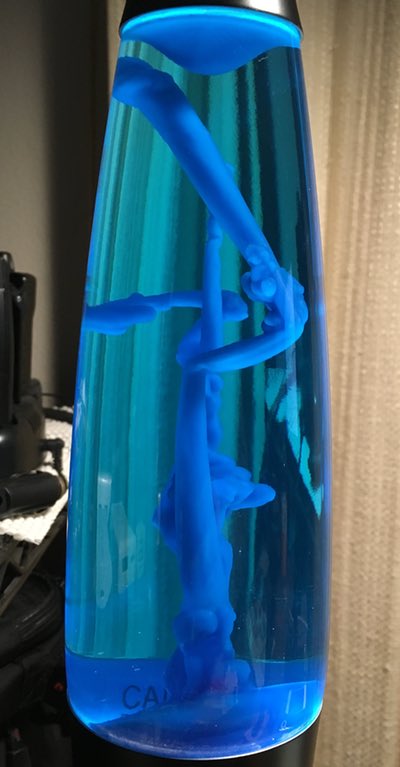
The last time we were there, I was smitten by a lava lamp, similar to this one, but ours has a black base and blue "lava." I don't know why (childhood flashback?), but I decided some of our points cache would go to this mesmerizing but otherwise useless device.

When I got it home, I was surprised at just how long it takes to warm up: It can take nearly an hour before any "lava" starts flowing, and about two hours before it really looks like a traditional lava lamp. During the first hour, though, the melting wax in the lamp makes some really cool abstract bits of art, as seen in the photo at right.

I thought this might make a neat time lapse, so I set out to record it with the iPhone. My first attempt failed, due to the iPhone's auto-adjusting time-lapse feature. Because the lamp takes so long to get going, the gap between frames winds up being quite long. Long enough that when stuff does start happening, the iPhone's time-lapse gaps are too wide to make for an interesting video.

I needed another solution, so I headed to the iOS App Store to see what was available…

[continue reading…]


Total PDF pages in subfolders across folder structure

Last week, I wrote a script that ran through a folder structure and output the page count of every PDF in all folders and sub-folders, and also spit out a grand total.

While this worked well, what I really wanted was a script that just totaled PDF pages by sub-folder, without seeing all the file-by-file detail. After trying to retrofit the first script, I realized that was a waste of time, and started over from scratch.

The resulting script works just as I'd like it to, traversing a folder structure and showing PDF page counts by folder:

$ countpdfbydir
    47: ./_Legal
     2: ./_Medical-Dental
    15: ./_Medical-Dental/Kids
    11: ./_Medical-Dental/Marian
     2: ./_Medical-Dental/Rob
    35: ./_Personal Documents/Kids
    87: ./_Personal Documents/Marian
    28: ./_Personal Documents/Rob
    10: ./_Personal Documents/Rob/Golf
    12: ./_Personal Documents/Rob/Travel
-------------------------------------------------------------------
   249: Total PDF Pages

It took a few revisions, but I like this version; it even does some simplistic padding to keep the figures lined up in the output.

[continue reading…]


Why Apple hasn’t responded to your bug report

I know Apple gets a lot of bug reports (i.e. RADARs, for Apple's internal name for the system). But I didn't realize just how many until I filed a minor flurry of reports over the last day and a half. OK, a minor flurry is four. For me, though, that's a lot. The time gap between the first and the last was 36.87 hours. The gap in RADAR numbers across those hours was 31,222—and that struck me as a huge number of bug reports.

That got me wondering if the numbers were actually sequential, so I asked Twitter. I received a single reply, but that reply confirmed that yes, they are sequential. Based on that, I could do math on my RADARs and find an average, then try to extrapolate. But there's a much better data source: Open Radar.

Open Radar is a site where users can republish the RADARs they've filed with Apple. Not everyone does so, of course, but that doesn't matter, because each one includes the original RADAR number. So I went back and found RADAR 19363080 from January 1st, 2015, and RADAR 23519997 from November 12th, 2015.

Do the math on those RADAR numbers ... 23,519,997 - 19,363,080 ...

4,156,917 bug reports so far in 2015

Wow. If that run rate continues for the remainder of the year, they'll finish with 4,811,865 bug reports! That number is so big as to be unimaginable, so here it is in some smaller units:

  • 551 per hour
  • 13,219 per day
  • 92,536 per week
  • 400,989 per month
  • 4,811,865 per year

That's an insane volume of actual submitted bug reports. How insane? If each bug report can be handled in just five minutes (very unrealistic), you'd need over 200 full-time bug report workers just to handle all the bug reports for one year! (I know: automated systems, duplicates, etc. But still...)

So if you're wondering why Apple hasn't replied to your bug report, it's probably because there are a few hundred thousand—or more—bug reports ahead of yours in the queue.