Skip to content

An odd iOS8 wallpaper placement issue

While creating and testing my iPhone 6 wallpapers, I ran into a little issue with how iOS 8 (I think that's the culprit) places wallpaper. You can see the issue by watching (and listening; yes, there's an audio track!) the movie at right.

You won't see this problem unless you try to use a wallpaper with a visible row for iOS's page indicator dots; I prefer this style of home screen, as I like the separation it adds between the dock and the icon area.

When placing such a wallpaper, however, if you don't bounce it off the top of the display, it winds up being positioned just a bit too low—the row that's supposed to contain the page indicator dots won't quite be in the right spot. As I wrote on my iPhone 6 wallpapers post, here's the workaround in text:

  1. Tap the desired home screen icon to see the full-size version.
  2. Disable Perspective Zoom. (It won't work right with the navigation highlight row I use.)
  3. Pinch and zoom out so the image is at it's 100% size.
  4. Now drag the image up and let it bounce—this is the critical step.

This really strikes me as a bug, because the images I'm using are 750x1334, which exactly matches the iPhone's resolution. So with perspective zoom off, and the image shrunk to its smallest (actual) size, there should only be one way to put that image on the screen. But, as seen in the video, that's not the case.

This is probably of use to only a couple other people on the planet who like divider rows for the page indicator dots…but if you're one of those people, hopefully this helps you get your wallpapers properly positioned.



Wallpapers: iPhone 6

Once I had my iPhone 6 syncing, it was time to get to work on my home and lock screen wallpapers. I have made these for every iOS device I've owned—here's the full collection.

My home screen wallpapers feature a bar to highlight the paging dots, and are typically "low noise" to make it easy to see icons and text. The lock screen wallpapers have no such restriction, and include a little bit of everything.

These wallpapers are 750x1344 pixels in size, and are designed for use on the iPhone 6, as that's what I have. (If you use a Plus, and really like an image or two, let me know and I can make one for the larger phone.) Note that the images shown in the image sliders below (hover and click to cycle) are low-quality 180x320 JPEG representations of the actual photos; to get the high-quality images, download the entire bundle [24MB] and install only those you wish to use.

Home Screens (16)Lock Screens (52)

Note: Due to a quirk in iOS 8, you need to use these steps when installing one of my home screens, otherwise the nav bar (the bar that shows the page navigation buttons) won't be located in the right spot. Here's how, assuming you're in the "Choose a new wallpaper" section of iOS:

  1. Tap the desired home screen icon to see the full-size version.
  2. Disable Perspective Zoom. (It won't work right with the navigation highlight row I use.)
  3. Pinch and zoom out so the image is at it's 100% size.
  4. Now drag the image up and let it bounce—this is the critical step.

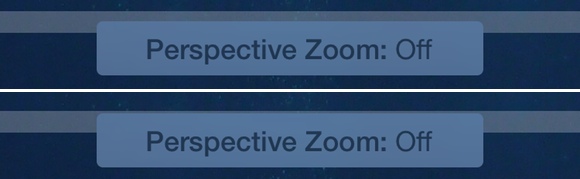
If you've done the above steps right, then you'll see quite a few pixels of the nav bar above the Perspective Zoom button (top image). If you haven't done it properly, then the nav bar will barely clear the button (bottom image).

Given the images are the same resolution as the screen, I have no idea why this happens…but it does, and this is the only way to make sure the nav bar winds up where you want it.

License: All photographs in these wallpapers are © Rob Griffiths, and are freely provided for personal use only. You may not include these wallpapers on other sites, nor in any commercial product, without my prior permission. (I hate having to put this here, but prior experience has shown it to be necessary.)


A visual guide to iPhone screen resolution over time

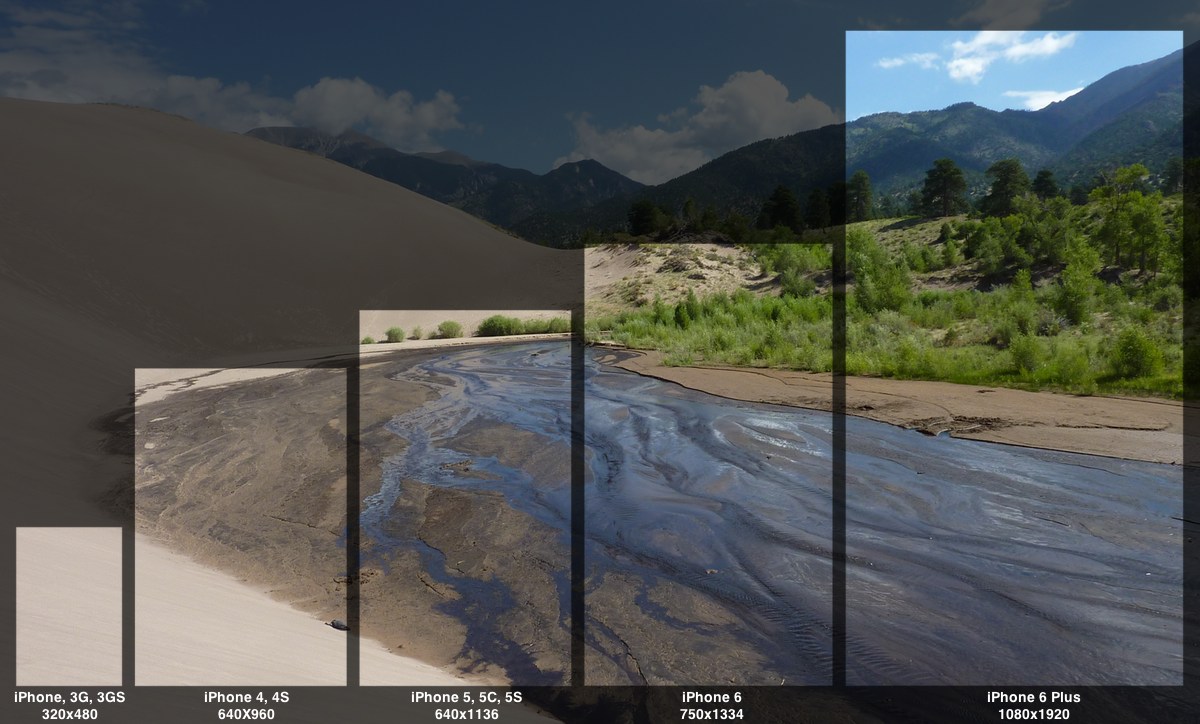
While I was working on some iPhone 6 lock and home screens, I paused for a few minutes to put together this visual guide to the iPhone's changing screen resolution over the years (click to zoom):

Both the inline and zoomed image above are smaller than 100% scale, of course. But if you'd prefer, you can check out the massive full-size version. Be forewarned, this is a 3628x2188 pixel photo, and it's 1.7MB in size.

For the curious, the original photo was taken at Great Sand Dunes National Park and Preserve, at roughly this spot, looking north-ish.

When viewed in this comparative manner, the iPhone Six Plus' resolution really stands out—there are a ton of pixels on that gorgeous screen!


A nasty little iTunes/iOS bug may be causing media sync issues

November 18th update: My sync issues returned, but due to a different cause this time. Details in this post.

After complaining to Tim Cook, and separately starting a (now closed) support ticket, it appears that my iOS/iTunes sync nightmare has finally come to an end!

I have not seen a progress bar that busy since the day I brought my iPhone 6 back home. Whatever I tried, iTunes simply would not sync everything in my library. In the end, the problem turned out to be as simple—but as deadly—as this:

In the current version of iTunes/iOS, there's a bug that only appears when you have duplicates of purchased songs. When encountered, a duplicate of a purchased song will (almost always) cause iTunes to silently stop syncing.

This is a known-to-Apple issue, and it will be fixed in a forthcoming update. I'm fairly certain it's an iTunes bug, but as Apple didn't clearly state which it was, I'm calling it iTunes/iOS. Either way, until it's fixed, it's a really bad bug.

Here's what happens: If you have duplicates of purchased songs, iTunes simply silently stops syncing when it hits one of those duplicates. From your perspective, it will look like everything is working—iTunes never throws an error, and it proceeds through all six (or seven or whatever) steps of the sync process, as seen in the status window of iTunes.

But behind the scenes, nothing is happening—at least, nothing relative to syncing your files. As seen by my troubles, this can be incredibly frustrating and hard to fix.

Continue reading to see how I was able to finally (with Apple's help) get my devices syncing again—the tricky part is finding all the duplicates, because they're not all obvious. Also note that if you are not having sync issues, I wouldn't worry about duplicates—no need to endanger what's already working well!

[continue reading…]


An iPhone 6, (no) movies, and me

On Friday, I received my new iPhone 6, which I really like—a lot, in fact. Over the weekend, however, I discovered that my new iPhone does not like iTunes—at least not syncing my movies via iTunes.

Things started great, with the arrival of the new iPhone 6 on Friday afternoon:

From there, though, things didn't go exactly according to plan…and I documented my progress (or lack thereof) via Twitter over the weekend. Read on for the full story, as told in 140 character increments.

[continue reading…]


I asked Tim Cook for tech support…and you should, too!

Those following me on Twitter this weekend will have noticed that my (lovely, stunning, amazing, I am keeping it) iPhone 6 is not playing nicely with iTunes. I've invested over 10 hours—in one day—just trying to get music and movies onto my iPhone.

Frustrated as hell, I decided ask Tim Cook for some tech help, not that I have much hope of any sort of reply. Emails to his address, however, are apparently all read by someone. For those having similar issues, I think it may be useful to also send your feedback in Tim's direction; his email address (not a secret, published in many places) is tcook at Apple's domain. Perhaps if there are enough voices providing feedback in high places (not that Tim reads these himself), we might see some action.

Further update: I have now done two full system restores. I did the second just before bed last night, and let the iPhone sync overnight. On wake, everything worked! So then I added in a few more movies, and—of course—they failed to sync. So now I'm back where I started, oh so many hours ago.

Anyway, For the curious, here's the tech support request I sent to Tim yesterday.

[continue reading…]


My iPhone 6 case of choice…or choice of case?

With my recent iPhone 6 purchase, at first I was contemplating no case at all. I was thinking I'd just put on a set of Bodyguardz clear skins and call it good.

But (to me, at least) the iPhone 6 is quite slippery—much more so than my iPhone 5. And given my history of dropping my iPhone 5 in some really bad spots, I decided a case was a good idea.

At the Apple Store, they had Apple's own leather and silicon cases, and some cases from an unknown (to me) company, Tech21. The Apple cases are nice, but they completely cover the gorgeous phone. So I tried one of the Tech21 cases, and came away impressed enough to buy one.

The cases in the Apple Store—the Evo Mesh for iPhone 6 and 6 Plus—aren't even on the Tech21 site yet. However, it's the same design as the Evo Mesh for iPhone 5s, just upsized. You can find the case listed on the Apple Store, though not the color I purchased (smoke with the protective edge bits in orange).

I like that the case is really thin and light, that I can still see the back of the iPhone, and that the important bits are all protected. I'm not sure about the effectiveness of Impactology, and I hope I never have to find out.


Even in the case, my iPhone 6 is slimmer than my iPhone 5 in its also-very-thin case, as seen in the image above—the iPhone 5 is the blue case in the background.

The Evo Mesh case is grippy soft plastic, making the phone easy to hold. It's not, however, so grippy that it won't slide in and out of pockets, which is good. The cover slips on easily, fully covers the volume and power buttons, and leaves the important ports uncovered. The top protrudes just slightly above the height of the phone, so I can set the phone face down without worry. The case is also just thick enough that the protruding camera lens no longer protrudes, which I love.

Overall, I'm impressed with this case. We'll see how it holds up over the next few months, but initial impressions are good.


This one’s not going back

My friend Kirk McElhearn recently wrote about returning his iPhone 6:

I used the iPhone 6 for a week; I went back to the iPhone 5s on Friday, to see if I really liked it better. And I did.

At the time Kirk wrote that, I didn't yet have my iPhone Six Plus—it was still on order. I do now have an iPhone 6, though, and I have to say that I think Kirk's passion for Shakespeare has muddled his modern-day thinking—he's probably out shopping for an abacus right now. As for me, well, there's no way my iPhone 6 is going back!

But I'm jumping ahead of myself, because as of this morning, I didn't actually have an iPhone 6. I still had an iPhone Six Plus on order, with a ship date expected between yesterday and October 13th. I was planning on waiting it out, but after numerous trips to both the AT&T and Apple stores over the last week or so, I decided that the Six Plus was simply too big—despite what I wrote earlier.

This morning, I called AT&T and canceled my iPhone Six Plus order (which they handled very pleasantly). I only did this, though, after using the "check availability" button in the Apple online store's iPhone section. We're lucky enough to have three Apple Stores in the Portland area, and the tool indicated I could find a space gray 128GB AT&T phone at two of the three (Bridgeport Village and Pioneer Place but not Washington Square).

All my previous iPhones have been secured on launch day, either via the mail or by waiting in line. I was curious how it'd go now, a couple weeks after launch. By the time I got my phone, I had been surprised a number of times.

[continue reading…]


Silently mute the mic input via AppleScript

Note: The scripts in this hint don't truly mute the mic input; they drop its volume to zero. That's because there's no way to mute an input source via AppleScript (while you can mute an output source). At zero level, the mic will still pick up sounds, but they're very quiet.

Thanks to John Welch, though, you can download an app that will mute the mic with a simple one-click HUD—he posted it in the first comment here, but that download link is broken. Instead, download it via this link, and you should be good to go.

While recording our weekly podcast, The Committed, I often want to mute the microphone input for one reason or another. (Yes, my microphone has a big Mute button on it, but pressing it results in an audible CLICK in the recording.)

There are any number of ways to do this quietly, including just sliding the level down in the Sound System Preferences panel (though it's hard to then get it back to exactly the right spot). There are also any number of App Store apps that will do this for you; some are free, some are paid. And doing it programmatically yourself is as easy as two one-line AppleScripts:

Save those separately, assign keyboard shortcuts (or more quietly, trackpad gestures) using your favorite third-party tool, and you're done.

But I wanted something more. I wanted one script to mute and unmute the volume. I also wanted a visual reminder when I was muted. After an afternoon of slogging around the internet, looking up obscure AppleScript command syntax, and diving into Sal Soghoian's AppleScript 1-2-3 book, I came up with something that seems to work. This short video shows one version of it in action:

Read on for the code and a how-to on putting it to use.

[continue reading…]


Behind OS X’s modern face lies an aging collection of Unix tools

Note: This article has been heavily modified, as I was a total knucklehead and completely forgot about GPL v3—thanks to Geordie Korper for pointing it out in the comments. Basically, the cause of the aging Unix tools in OS X is GPL v3. I've updated the following table to include the license information. In every case but one (nano), GPL v3 is the license on the non-updated apps. So that's that…I'll leave this up, though, in case anyone's curious about this stuff.

As I covered recently, the version of bash that ships with OS X is quite old, and as such, is vulnerable to the recently-revealed bash security hole.

At some point, Apple will release an OS X update containing a patched version of bash. (Update released.)

So while Apple has patched bash, this version of the shell is simply ancient. Just how old is it? bash 3.2.53(1) is roughly seven years behind the current version, 4.3.25. Seven years is like, well, forever, in Internet time!

With that bash age gap in mind, I took at look at a number of common Unix apps—in both Mavericks and Yosemite—to see which versions were in use. Then I checked the same apps in MacPorts, a tool that makes it simple to install many Unix apps.

(MacPorts doesn't necessarily have the absolute latest version of every Unix app, but they do stay relatively current. For instance, they already have a patched version of bash that fixes the above vulnerability.)

The results were interesting, to say the least—many of the core Unix utilities in OS X are years and multiple versions behind their open source, er, sources. You can thank GPL v3 for that, as noted above (and covered in more detail below). But that still leaves the big question:

Does it matter?

That is, should we care that these tools aren't keeping up with their latest and (presumably) greatest versions? Is it a problem, or merely a statement that what we have works well enough for the majority of users? (For those who don't want to bother reading, my general opinion is no, it doesn't matter.)

[continue reading…]