Skip to content

Terminal

Cancel shell script on remote connect failure

I use a shell script to back up this site (and a variant of the same script to back up the Many Tricks site). I've been using these scripts for over a decade (wow), and though they've evolved, they're still fundamentally the same. (I did switch from cron to launchd for launching them, however.)

While the script typically runs very nicely, I recently noticed that my last backup was from a few weeks ago—uh oh. It didn't take long to figure out what had gone wrong: My ISP changed the hostname of the machine my site runs on, and my script uses ssh, scp and rsync, which connect via the hostname. Unfortunately, the failure mode is silence, because the script runs via a scheduled task. The only way I knew it failed was when I went to check the backup folder. Obviously, something more automatic than that would be desirable.

After much web searching, I couldn't find anything that seeemed like it'd do what I want: An email (and onscreen alert) if my backup failed. I found lots of Unix solutions to send mail using sendmail, but I didn't really want to enable that on my Mac. So I futzed around and built a simple checker that will mail me when it can't reach my web host.

[continue reading…]


How to find modified preference values

My recent tip about using Keyboard Maestro to toggle the visiblity of hidden items in Finder (which turned out to be irrelevant for Sierra users; just hold ⌘⌥.) works by checking a hidden macOS preferences setting. In this case, I checked for the existence of the AppleShowAllFiles key, which let me toggle the visiblity of invisible files based on the result of the check.

Controlling a macro—or a shell script or AppleScript—by checking (visible or hidden) preference values can be very useful. But how do you find out the name of the preference you need to check, and in which domain (preferences file) you'll find it? Hidden prefs are actually easiiest, because the command you use to write them tells you both the preference name and its location. For the hidden files in Finder tip, for instance, the command is this:

defaults write com.apple.Finder AppleShowAllFiles YES

So to check that in a script, I just need to save the results of defaults read com.apple.Finder AppleShowAllFiles into a variable, and I can then take action based on the variable's value. But what about a normal pref, in an application (or in System Preferences)? Say you wanted to check whether Apple's Pages app was set to show its rulers in inches or centimeters…

Why would you want to know this setting? I don't know, I was just trying to come up with an example. Just go with it…

How do you find out the key name associated with that particular preference, and what file it's stored in? I use a couple of different methods.

[continue reading…]


Color and ‘human readable’ file sizes in Terminal

These are two very old tips, but I'd forgotten about them until recently, when I sent someone a screenshot and they said "Hey, how'd you do that?"

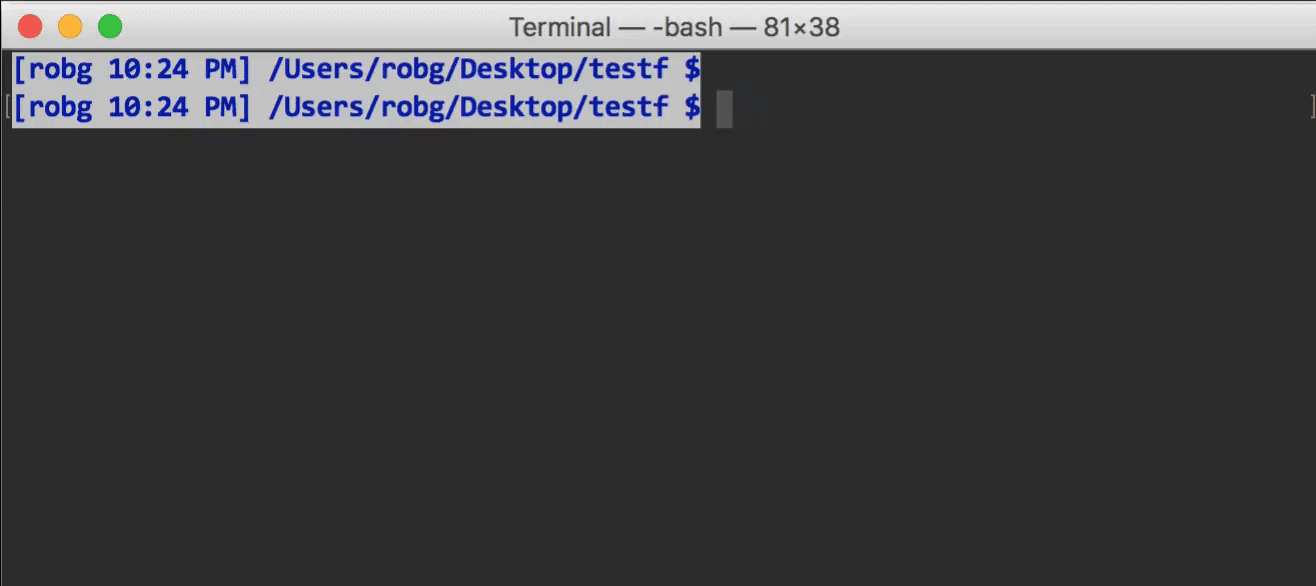
Do what, exactly? This…

The most-obvious thing in that shot is the colored filenames. But notice, too, the file sizes are in a human-readable form. Both of these changes are pretty simple, though you could spend hours playing with colors.

Human-readable output

To get human readable output—not just from ls but also in du, which shows disk space usage—just include an h with the ls command: ls -alh. Instead of raw bytes, the values are converted and marked with trailing B, K, M, etc.

Because I never use ls in its short form, I actually added a line to my .profile (which loads whenever you open a Terminal session) to make this automatic:

alias ls='ls -alh'

You could do the same thing with du, but I rarely use that command, so I didn't bother.

[continue reading…]


Use macOS VMs in VMware Fusion in retina mode

I use VMware Fusion often—I have virtual machines that span Mac OS X 10.6 to macOS 10.12.4 beta. I use the more-recent of these for supporting our customers on older versions of the OS, and keep the really old versions just for nostalgia purposes. (I have a bunch of non-macOS virtual machines, too, but they're not relevant to this tidbit.)

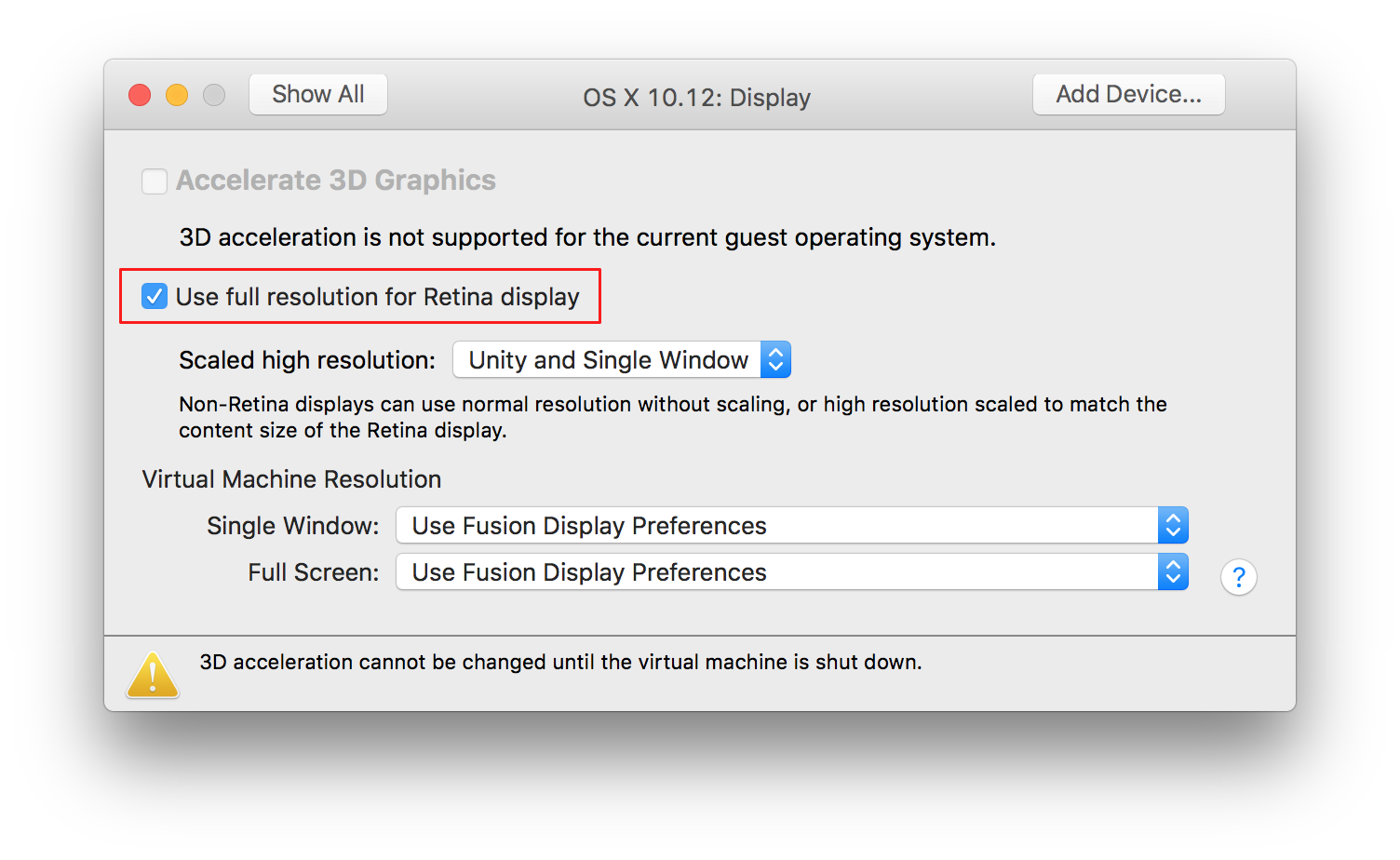
In all the time I've been using Fusion on my retina Macs, though, I've never enabled this setting…

…well, I enabled it once, but turned it off, because the end result was too small to see: In Retina mode, every pixel is an actual pixel, not a doubled pixel. On my 27" iMac, that meant the macOS VM thought it was running at (for example) 2560x1600 instead of a retina resolution of 1280x800. VMware even warns you of this in their Knowledge Base:

Mac OS X running in a virtual machine is limited to an approximate resolution of 2560 x 1600, and treats the display as a standard DPI device. This makes the text and icons to appear small in the OS X interface.

However, today I stumbled across this solution from Patrick Bougie—and it's brilliant in its simplicity. Patrick's post has all the details; I'll reproduce them here in abbreviated form, just in case his page ever vanishes.

[continue reading…]


Edit long Terminal commands in a visual editor

Here's a quickie tip for those of us who occasionally string together complex commands at Terminal's prompt: You may want to add this simple line to your .profile (or whatever init file you use):

set -o vi

What does it do? It tells Unix/Terminal to set the input line editor to vi. When might this be useful? Let's say you've typed a long command, like the one to launch a background screen saver:

/System/Library/Frameworks/ScreenSaver.framework/Resources/ScreenSaverEngine.app/Contents/MacOS/ScreenSaverEngine -module "Arabesque" -background &

Before you hit Return, you notice a couple of typos early in the command. You could use cursor movement keys to move around, of course, but with the above command in place, just press Escape and hit v: The entered command will open for editing in vi. Make your changes, then do the usual :wq vi exit dance, and your edited command will then execute.

Note that if you edit a command but then don't save it (i.e. you press :q!, you may have to hit Return on the command line to get out of an odd "waiting for v to edit" mode. (At least that's the only way I found to return to normal typing.)


An odd fix for ‘jpeg’ vs ‘jpg’ filename extensions

I recently reinstalled macOS Sierra, due to my annoying Bluetooth issues. I hadn't noticed any side effects of the reinstall until I went to save a JPEG image from Acorn.

On save, I noticed that the image's extension was .jpeg rather than what I thought was the usual .jpg. As both of my other Macs save with the .jpg extension, I figured something was messed up on the iMac. So I (of course) tweeted about the issue. A while later, Shawn King replied with this seemingly odd suggestion:

So I tried it, and sure enough, changing the screen capture file format via defaults write com.apple.screencapture type jpg and then restarting the SystemUIServer with killall SystemUIServer changed my default JPEG extension in every app to .jpg.

What's really strange is that I then switched the screenshot format back to png, and the .jpg extension remained. I even went so far as to delete the pref (defaults delete com.apple.screencapture), and still, the extension remains .jpg. So whatever change occurred when switching the default screenshot format, it appears to be permanent.

I tried the same trick for the .tiff extension (which I rarely use, so it doesn't bother me as much), and it sort of worked: Captured screenshots got a .tif extension, but images saved from apps still got the four-letter .tiff extension. Weird.

If anyone knows exactly what's going on with the .jpeg vs. .jpg extension, I'd love to hear the explanation.


Watch a screen saver in the background

Another oldie but goodie, and it's best demonstrated by example:

Yes, that's a screen saver running in the background, behind whatever work you're doing. And if nothing else, it's a great example of the progress of our CPUs and GPUs since 2002. In the original hint, I noted:

On my G4/733 with the GeForce3, this is simply amazing. The new "flurry" screensaver is running right now on the destop at 1600x1200 in thousands, iTunes is playing, the ink recognition floater is open, and yet the CPU utilization is averaging at or below 50% of thereabouts

Today, I'm testing it on a 5K iMac (5120x2880) with a second connected 4K (3840x2160) display—a total of 23,040,000 pixels, or 12 times as many pixels as in 2002—with Flurry running on both screens, and the CPU usage is somewhere around 10% to 15%. (Flurry does send the iMac's fans into a tizzy, though.) Other screen savers are even less intensive, and don't send my iMac's fans into high gear.

I can't imagine actually working this way for very long, but it is kind of interesting. Here's how to start (and more importantly, perhaps, stop) a background screen saver.

[continue reading…]


A unique way to see the weather

Ever wanted a "light" weather check web site, free of ads and other visual clutter? One that you could maybe even use from Terminal? Then you want wttr.in.

Sure, you can use it from your browser, i.e. see the weather in Boston or Montreal, by just appending the zip/postal code of interest to the URL, i.e. http://wttr.in/95014. If you omit the location, wttr.in will get the location based on your IP address—for me, that's never anywhere near correct when I'm at home, though.

What's really neat is you can use it in Terminal, too, via curl:

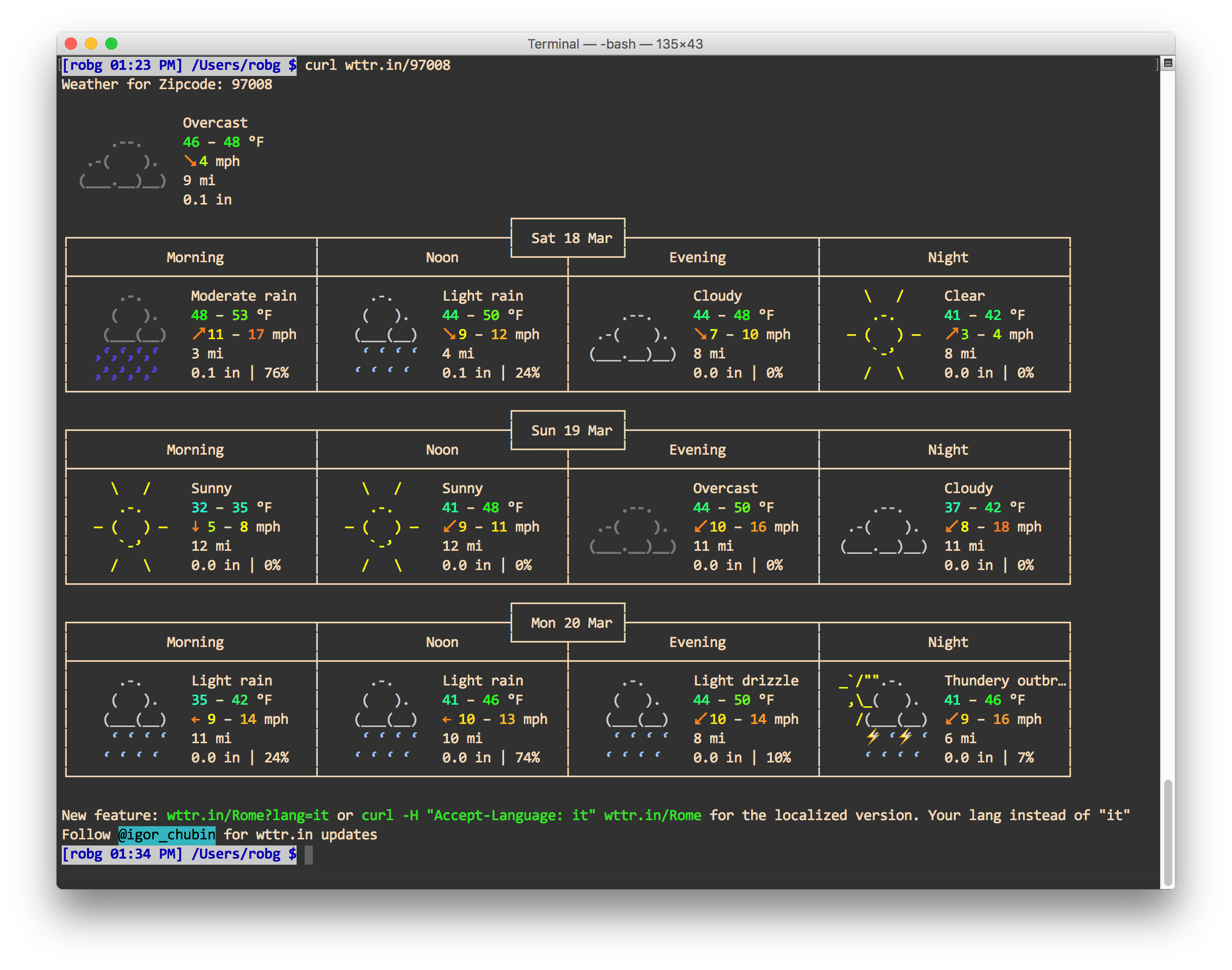
$ curl wttr.in/80301

The output is graphical, but done so with text characters (click for zoomed version):

At a glance, you get a few days' worth of conditions, including temperature range, wind speed, visibility, and precipitation. There's even animation—check somewhere with thunderstorms, and you'll see flashing lightning bolts.

There's a help page that explains lots of other options, like forcing metric or US units, and looking at weather by airport code.


Install and use a non-GUI connection speed test tool

Yesterday on Twitter, Dave Hamilton tweeted…

What is this speedtest exactly? And what is brew, you may also be wondering? You may also be wondering why, if you have brew, Dave's command doesn't work…that's because it's actually brew install speedtest_cli…but I'm getting ahead of myself.

speedtest is a command line interface (i.e. Unix app run from Terminal) to the connection speed tests at Speedtest.net—you get the results without the fancy animated graphics. And Brew is "the missing package manager for macOS." In other words, it's an app to help you install (and uninstall) other apps.

Here's how speedtest looks in its default mode—note that I've sped things up greatly for the GIF…

Much nicer to me, though, is the simplified version:

$ speedtest_cli --simple
Ping: 9.482 ms
Download: 94.23 Mbit/s
Upload: 68.66 Mbit/s

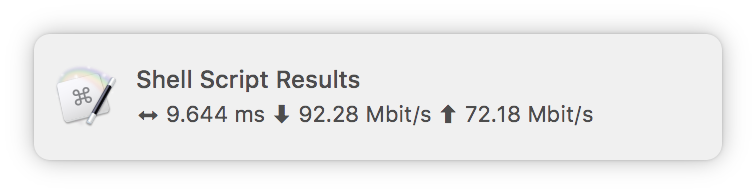
No animated dots, just three lines with the results. As you might expect if you read here regularly, I also wrote a Keyboard Maestro macro (of course I did!) that makes it really easy to run the simple version of the test, and does some editing of the output to simplify the display:

If you'd like to install speedtest (and maybe add the macro)—even if you don't want to install Brew to do so—keep reading…

[continue reading…]


Change the look of inactive Terminal windows

I tweeted this recently…

Things I did not know (or perhaps remember): Terminal lets you set the opacity and blur of inactive windows. (Profiles > Text > Background)

…but because I often forget about those things—the ephemeral nature of tweets being what it is—I figured I should post it here, too.

I have no idea when the feature appeared, but I only discovered it on February 27th, when I tweeted about it. You'll find the window at right in Terminal's preferences, on the Profiles tab—look in the Text section for a selected window, then click the color tile under Background. Check the box to set opacity and blur for inactive windows, and you're done.

As I use a dark background in Terminal, I like this feature a lot. I've now got it set up to go transparent and fuzzy when inactive—this makes it basically vanish, so the dark background no longer grabs my eye.

At some point, I'll dig through my virtual machines and figure out when this was added…who knows, maybe it's been there for forever. In any event, I'm glad I stumbled across it the other day.