Skip to content

Frankenmac 2017: From BIOS to installed macOS

Today, a look at how my Frankenmac went from the basic hardware BIOS setup screen to a usable (though not yet fully complete or natively bootable) macOS machine. If you're just tuning in, you may want to catch up…

  • The Beginnings: Resources, parts list, and ordering. (Steps 1 - 3)
  • The build: Turning the parts into something that powers on…but that's about it. (Steps 4 - 5)
  • The roadblock: A new graphics card and an old case and old power supply do not mix.
  • Transplanted: Frankenmac moves into a new home, with a new power supply, to get around the roadblock.
  • The parts list: A constantly-updated list of the parts I used and the cost of each part.

Now that Frankenmac is functional in its new home—roadblock averted—it's time to explain how I got to that point from the BIOS boot screen of step five a few days back. It's a tale filled with drama, dread, doubt, defiance, and in the end, domination. Well, OK, it's pretty much none of that, but I had a string of "D words" in my head, and had to use them somewhere…

[continue reading…]


Frankenmac 2017: Transplanted

After hitting a roadblock with the graphics card connector in Frankenmac's many-years-old case, yesterday I picked up a new case and power supply, and set out to transfer the machine to its new home.

The power supply

First, the boring stuff: The power supply I chose is a Thermaltake Toughpower 750W 80 Plus Gold. It works well, and (other than the CPU and motherboard power cables) is modular, so you only add the cables you need.

Very strangely (to me, anyway) is that Thermaltake packages its power cables in a nylon bag, as shown in the image at right. I'm not sure why—do people wander around with PC power supply cables often enough to require a sturdy carrying case? Very odd. Anyway, the power supply is nice and quiet, installed easily, and seems to do its job. But power supplies are boring…

[continue reading…]


Frankenmac 2017: The roadblock

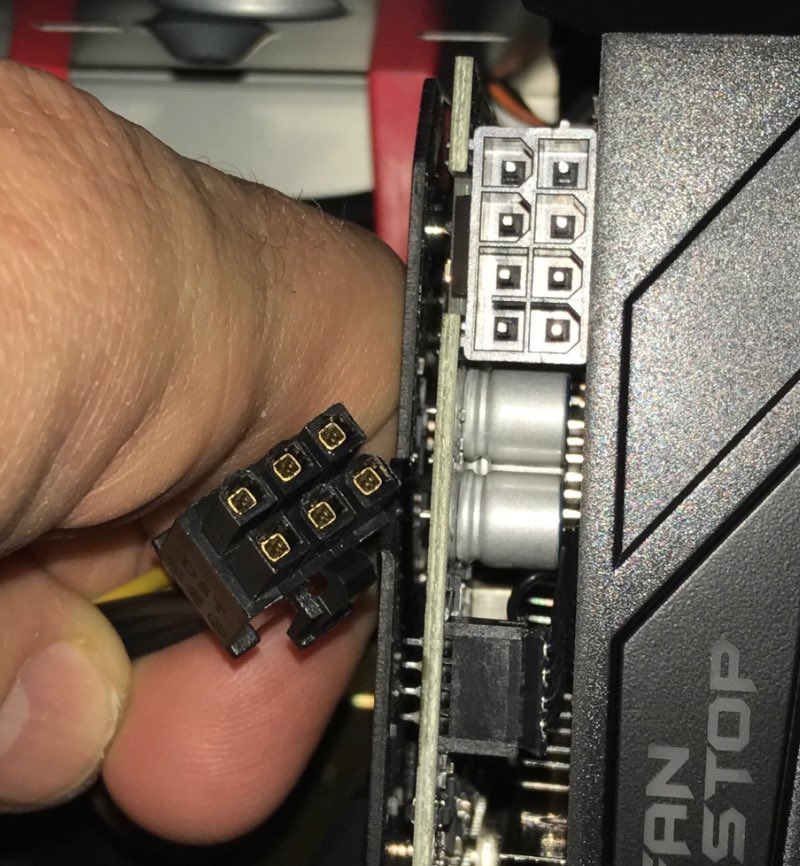
Today I was going to write about the process of going from the BIOS boot screen to having macOS installed on Frankenmac 2017. That, however, will have to wait for tomorrow, due to a pretty big roadblock I hit while trying to get my GTX 1080 graphics card working. The roadblock looks like this:

On the left, that's my hand. More relevant to the problem is that six-pin PCIe connector (from the power supply) in my hand. On the right is my graphics card, with its eight-pin connector. Now, while this may look like a round-plug square-hole problem, I didn't think it was, mainly because of what I found on this page:

Because of both the physical design as well as the use of the sense signals, the six-pin power supply connector plug is backward compatible with the eight-pin graphics card socket. This means that if your graphics card has an eight-pin socket but your power supply has only six-pin connectors available, you can plug the six-pin connector into the eight-pin socket using an offset arrangement, as shown below.

And it's true, the plug fits just fine. And when I powered up Frankenmac, the card lit up and the fans spun. However, onscreen I saw a message about connecting the PCIe power cable to the card, so clearly, something was amiss.

[continue reading…]


That time I predicted the future…twice

We were out to eat at a Chinese restaurant tonight; as with many such places, fortune cookies were provided at the end of the meal. Before our kids could touch their cookies, I said to Kylie (our eldest) something like "Your fortune has to do with travel, an unexpected journey, or something along those lines."

She opened up her fortune, which read…

You will discover new frontiers

Though there's room for interpretation in that fortune, one could certainly argue that it implies travel. Kylie gave me a raised eyebrow "how did you do that?" look.

Then it was Erica's turn; I said "Your fortune has to do with your being successful in the future." Her fortune?

Your confidence will lead you to sucess

That one was spot on…so much so that my kids were trying to figure out how I might've seen inside the cookies to pre-read the fortunes, or if there were some sort of mark on the package to indicate what the fortune might be.

No such trickery, just two wild guesses that turned out to be spot on. Probably would've been a good night to go name some numbers for a lottery ticket!


Frankenmac 2017: The Build

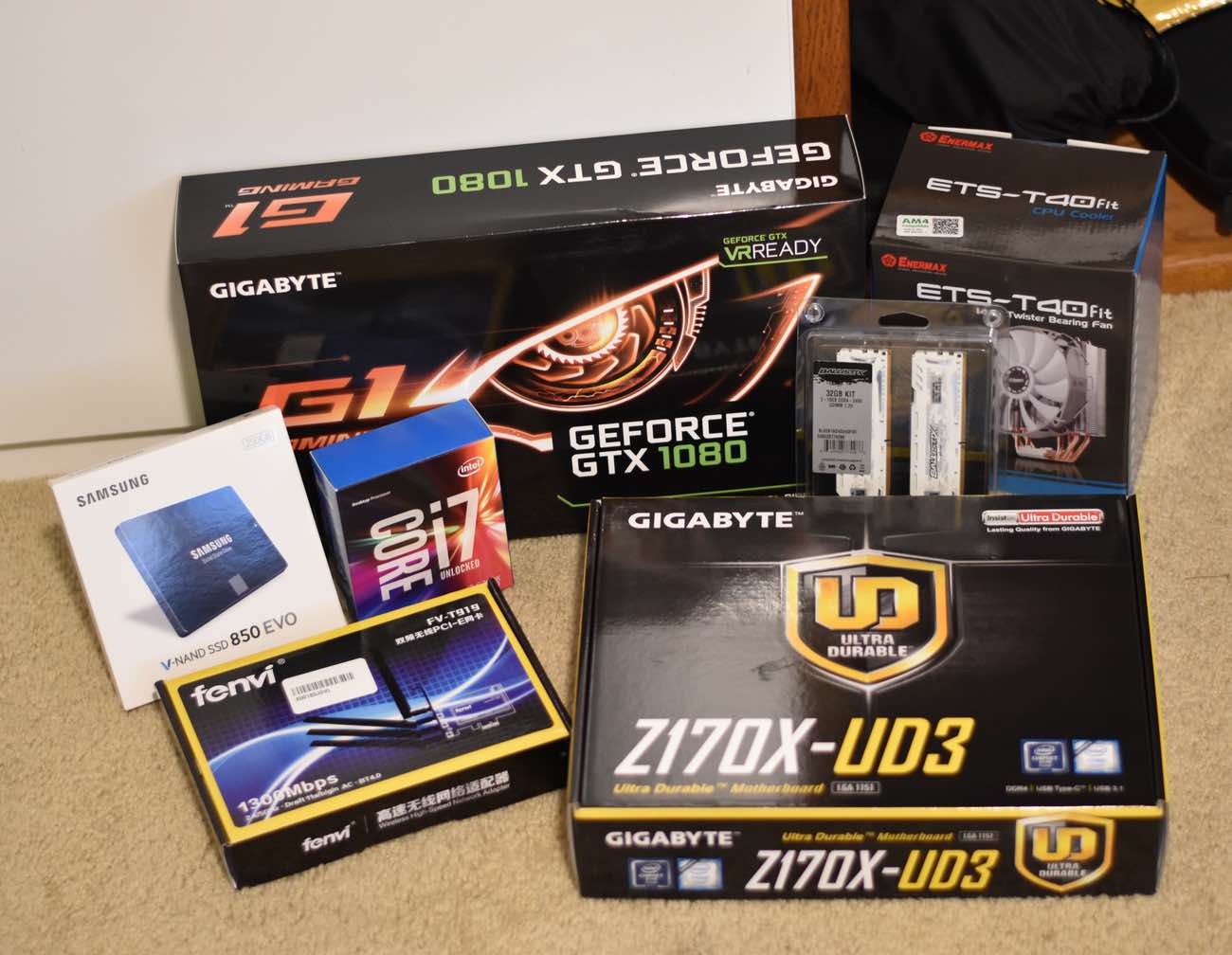
The continuing story of my homebuilt Mac, which I've named Frankenmac 2017. In the first installment, I covered resources, choosing parts, and ordering parts. Today, what do once the parts arrive, as mine did yesterday1Not shown: Keyboard, mouse, display, and the case.

Everything in that shot came via Amazon, except for the CPU heatsink/fan at the back right. That required more driving around than I'd care to admit (one business gone, one out of stock, another unexpectedly closed for the day), but I finally found something I liked. And with that, I had everything I needed to build the machine.

Note: This page contains an updated list (with links) of the parts I'm using in the project.

Now that I had the parts, it was time to try to turn them into a computer…

[continue reading…]


Adjusting for the oddities of ctime

In the shell script I use to back up my web sites (I really should update that, they're much different now), I include a line that trims the backup folder of older compressed backups of the actual WordPress databases. That line used to look like this:

find path/to/sqlfiles/backups -ctime +5 -delete

I thought this should delete all backups in that folder that are at least five days old, via the ctime +5 bit.1Footnote: I know now I should have been using mtime, though it would have had the same issue I had with ctime. But it turns out I thought wrong. The above will delete all files that are at least six days old. Why? I don't know why it works this way, but it's mostly explained in the man page for find (my emphasis added):

-ctime n[smhdw] If no units are specified, this primary evaluates to true if the difference between the time of last change of file status information and the time find was started, rounded up to the next full 24-hour period, is n 24-hour periods. If units are specified, this primary evaluates to true if the difference between the time of last change of file status information and the time find was started is exactly n units. Please refer to the -atime primary description for information on supported time units.

To make find do what I wanted it to do, I just needed to change +5 to +5d. Simple enough…but while figuring this out, I stumbled across this page, which has an alternative solution with more flexibility:

find path/to/sqlfiles/backups -mmin +$((60*24*5)) -delete

The mmin parameter is much more precise than ctime:

-mmin n True if the difference between the file last modification time and the time find was started, rounded up to the next full minute, is n minutes.

By using mmin, I can be really precise. As shown, 60*24*5 gets me the same five-day interval as ctime +5d. (And yes, I could have used 7200 instead of 60*24*5, but I find it clearer to leave it in its expanded form.)

But I could instead delete backups that were older than 3.25 days (60*24*3.25 or 5040), or for any other arbitrary time period. I like the flexibility this offers over ctime, so I've switched my script over to this form.


Frankenmac 2017: The Beginnings

It's been almost exactly nine years (wow!) since I last ventured into the land of Hackintoshes, or homebuilt PCs that can run macOS.

Back then, I built and used one, then wrote about the machine for Macworld, and they even lab tested it, where it held its own against real Macs costing much more.

Fast forward to 2017, and I've decided to tackle the project again. Why? Oddly, because there is a new Mac Pro coming, but it's a ways away. I want something I can use in the interim, without spending a huge amount of money on. When the new Mac Pro ships—assuming it's not an enhanced trash can design—I plan on upgrading, and the homebuilt Mac will become a gaming PC.

As I'm not writing about the project for Macworld this time around, I'm going to document things here on the blog as I go along. In today's installment, I cover the first steps in the process: online resources and parts decisions.

[continue reading…]


Cancel shell script on remote connect failure

I use a shell script to back up this site (and a variant of the same script to back up the Many Tricks site). I've been using these scripts for over a decade (wow), and though they've evolved, they're still fundamentally the same. (I did switch from cron to launchd for launching them, however.)

While the script typically runs very nicely, I recently noticed that my last backup was from a few weeks ago—uh oh. It didn't take long to figure out what had gone wrong: My ISP changed the hostname of the machine my site runs on, and my script uses ssh, scp and rsync, which connect via the hostname. Unfortunately, the failure mode is silence, because the script runs via a scheduled task. The only way I knew it failed was when I went to check the backup folder. Obviously, something more automatic than that would be desirable.

After much web searching, I couldn't find anything that seeemed like it'd do what I want: An email (and onscreen alert) if my backup failed. I found lots of Unix solutions to send mail using sendmail, but I didn't really want to enable that on my Mac. So I futzed around and built a simple checker that will mail me when it can't reach my web host.

[continue reading…]


How to find modified preference values

My recent tip about using Keyboard Maestro to toggle the visiblity of hidden items in Finder (which turned out to be irrelevant for Sierra users; just hold ⌘⌥.) works by checking a hidden macOS preferences setting. In this case, I checked for the existence of the AppleShowAllFiles key, which let me toggle the visiblity of invisible files based on the result of the check.

Controlling a macro—or a shell script or AppleScript—by checking (visible or hidden) preference values can be very useful. But how do you find out the name of the preference you need to check, and in which domain (preferences file) you'll find it? Hidden prefs are actually easiiest, because the command you use to write them tells you both the preference name and its location. For the hidden files in Finder tip, for instance, the command is this:

defaults write com.apple.Finder AppleShowAllFiles YES

So to check that in a script, I just need to save the results of defaults read com.apple.Finder AppleShowAllFiles into a variable, and I can then take action based on the variable's value. But what about a normal pref, in an application (or in System Preferences)? Say you wanted to check whether Apple's Pages app was set to show its rulers in inches or centimeters…

Why would you want to know this setting? I don't know, I was just trying to come up with an example. Just go with it…

How do you find out the key name associated with that particular preference, and what file it's stored in? I use a couple of different methods.

[continue reading…]


Change shell scripts based on where they run

This is one of those "oh duh!" things that I wish I'd realized earlier. I have a few shell scripts that I'd like to keep on the Many Tricks cloud server, as I'd like to use them on multiple Macs.

But depending on which Mac is running the script, I might need to use unique code. The path to my Dropbox folder, for example, is different on my laptop and my iMac. So if I want to reference the path to my Dropbox folder, it needs to be different on each Mac. I couldn't figure out how to make that happen with just one script, so I'd been using near-identical versions on each Mac.

Then I remembered the hostname command, which returns the name of the machine running the command:

$ hostname
Robs-rMBP.local

And that was the tidbit of "duh!" knowledge I needed. With that, and the case statement, I can make my shell scripts use code based on which machine runs them. For instance, I can set unique paths for the script that grabs the latest versions of our apps from our server:

myhost=`hostname`
case $myhost in
  Robs-iMac.local) theHub=/path/to/apps/on/manytricks/cloud ;
                   theDest=/path/to/local/copy/of/apps ;;
 
  Robs-rMBP.local) theHub=/different/path/to/apps/on/manytricks/cloud ;
                   theDest=/other/path/to/local/copy/of/apps ;;

                *) echo "Sorry, unrecognized Mac." ;
                   exit ;;

  cp $theHub/$appname $theDest/$appname
  etc

Another nice thing about this is the script won't run on a Mac I haven't set up yet, thanks to the #) bit. And if I happen to rename one of my Macs, the script will also fail to run, letting me know I need to update the name in the script.

A simple tip, but one I'd managed to overlook for years. Now that I've written it up, that shouldn't happen again.